The document outlines the processes and requirements for product warranty inquiries, upgrading warranty, and applying for extended warranty services. This document serves as a practical guide for end-users to understand timelines and procedures, ensuring a seamless and transparent after-sales experience.
To enhance customer experience and after-sales service efficiency, SolaX provides a user-friendly online warranty inquiry portal on the official website.
Inquiry steps are as follows:
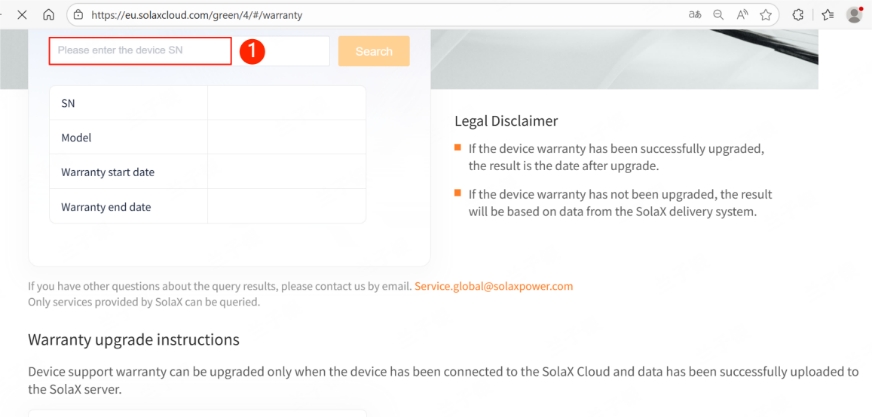
1. Entering the serial number (SN)
If the device warranty has been successfully upgraded, the result will display the warranty start and end dates after the upgrade.
If the device warranty has not been upgraded, the result will be based on the SolaX delivery system, and display the start and end dates of the standard warranty.
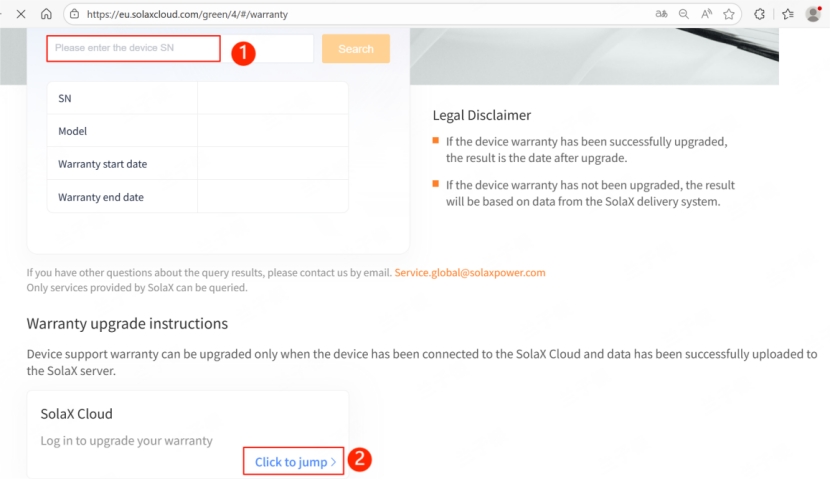
After logging in, refer to the next section for detailed instructions about Warranty Upgrade and Extended Warranty Procedures.
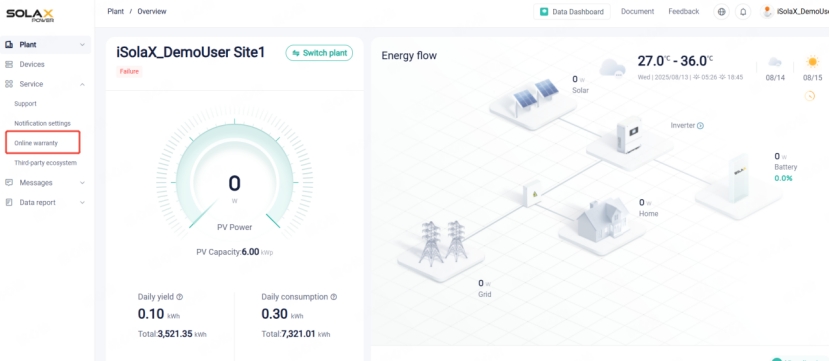
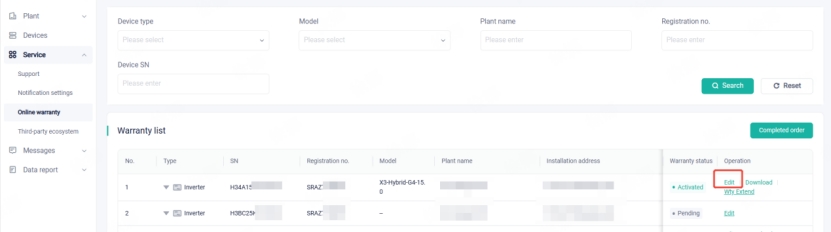
2. Navigate to Service > Online Warranty, select the target device and the device warranty will be updated automatically when the device is online.
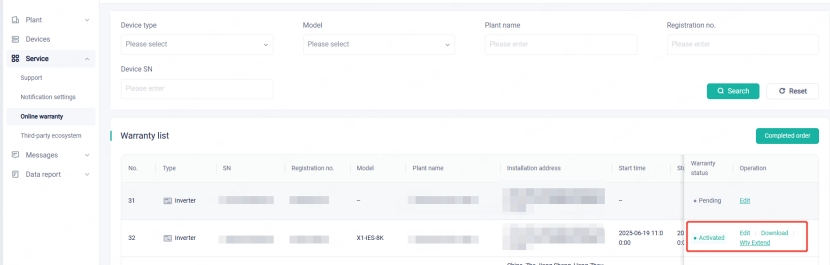
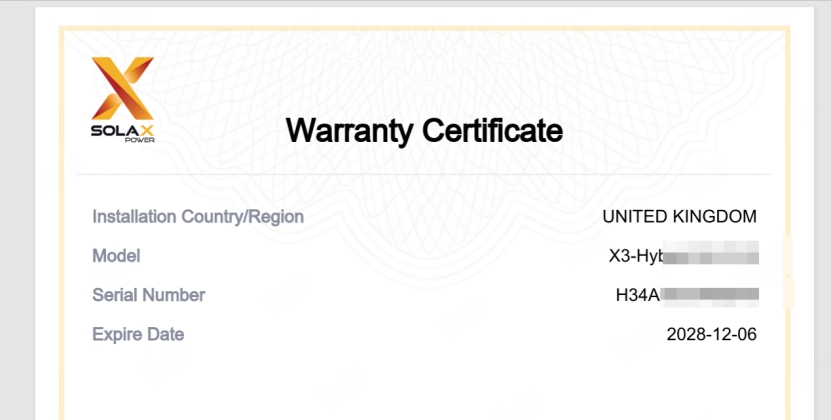
4. To obtain the warranty certificate, click Download.
Extended Warranty Procedures
1. Extended Warranty Code or Promotion Code Already Available
Step1: If an extended warranty code or a promotion code is to be used, select Edit.
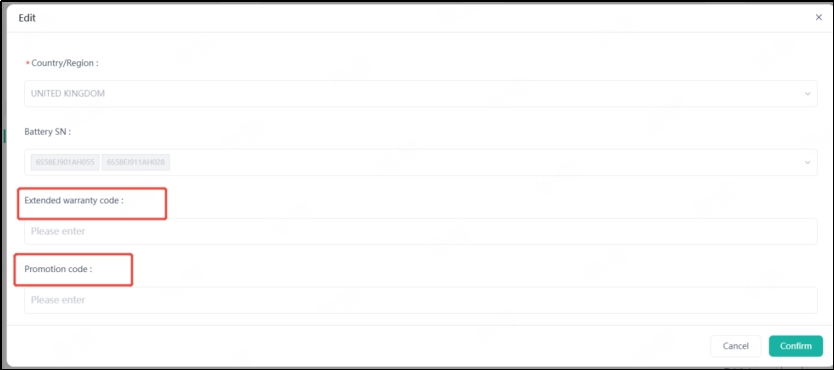
Step2: Enter codes in corresponding fields, and confirm submission.
*(Note: Extended Warranty Codes are deliverables from offline extended warranty purchases. Promotional Codes are used in special business scenarios.)*
2. Purchasing Extended Warranty Service online
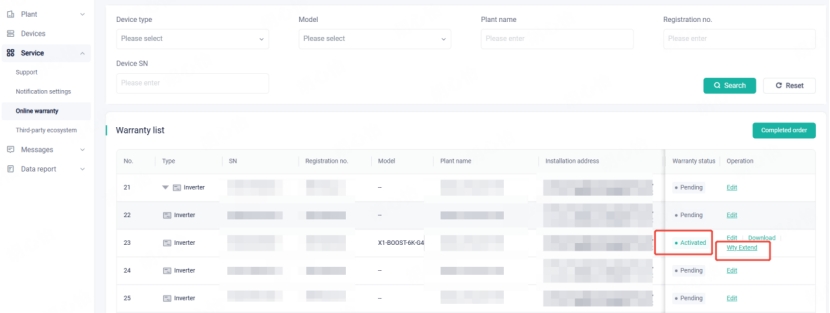
Step1: To purchase an extended warranty online, click Wty Extend.
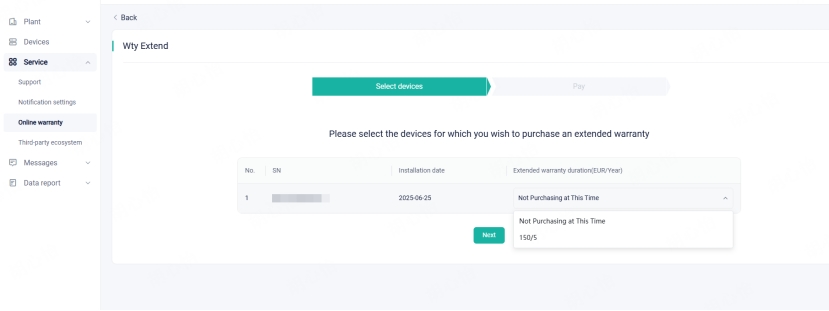
Step2: For products that support online warranty extension, the available warranty duration and prices will be displayed. Select the desired option to complete the purchase.


 Chuck Lee