1.1 Statement of Mandatory Upgrade
After XHub is installed and deployed, it is necessary to complete the firmware upgrade of the connected inverters, EV chargers, and heat pumps to the latest version first. Failure to meet the requirements will result in the inability of XHub to communicate with the devices.
1.2 Minimum Version Query
The minimum firmware version for supporting XHub communication for all types of devices are as shown in the following figure.
For the latest documentation, please visit the official website
|
Type
|
Model
|
Status
|
Minimum supported version
|
|
Energy-storage inverter
|
X3-Hybrid-G4
|
Supported
|
DSP: V001.57 ARM: V001.55
|
|
X3-Hybrid-G4 PRO
|
Supported
|
DSP: V018.04 ARM: V018.06
|
|
X3-IES
|
Supported
|
DSP: V026.02 ARM: V018.03
|
|
X3-IES-P
|
Supported
|
DSP: V007.02 ARM: V016.02
|
|
X1-Hybrid-G4
|
Supported
|
DSP: V001.58 ARM: V001.53
|
|
X1-IES
|
Supported
|
DSP: V026.02 ARM: V021.03
|
|
X3-ULTRA
|
Supported
|
DSP: V32.03 ARM: V32.04
|
|
X3-NEO-LV
|
Supported
|
Overall:V423.05
|
|
X1-VAST
|
Will Support
|
Please check the official website link above
|
|
Grid-connected inverter
|
X3-MIC-G2
|
Supported
|
DSP: V001.36 ARM: V001.36
|
|
X3-PRO-G2
|
Supported
|
DSP: V001.36 ARM: V001.36
|
|
X1-SMART-G2
|
Unsupported
|
/
|
|
X1-MINI-G4
|
Unsupported
|
/
|
|
X1-BOOST-G4
|
Unsupported
|
/
|
|
EV-charger
|
X1/X3-HAC
|
Supported
|
V008.04
|
|
C1/C3-HAC
|
Supported
|
V004.05
|
|
Heat pump
|
STU-R290
|
Supported
|
/
|
|
Shelly
|
Shelly Plus Plug S
|
Supported
|
/
|
|
Shelly Plug S MTR GEN3(White)
|
Supported
|
/
|
|
Shelly
|
Shelly Plug S MTR GEN3(Black)
|
Supported
|
/
|
|
Shelly Outdoor Plug S GEN3
|
Supported
|
/
|
|
Shelly Plus Plug UK
|
Supported
|
/
|
2 Operation Guide for Firmware Upgrade
Ensure stable power supply for the device and prohibit any power interruption during the process (network connectivity must be maintained for remote upgrades).
2.2 Operation for remote upgrade (OTA)
T he following steps take inverter upgrade as an example:
2.2.1 Remote upgrade through Web
1) Inverter connection via the Dongle device (WiFi/LAN/4G) and log in to SolaXCloud.
* Attention!
If the inverter device is initially connected to the XHub, Upgrades need to be performed through the Pocket Dongle. After the firmware upgrade, the Dongle can be removed.
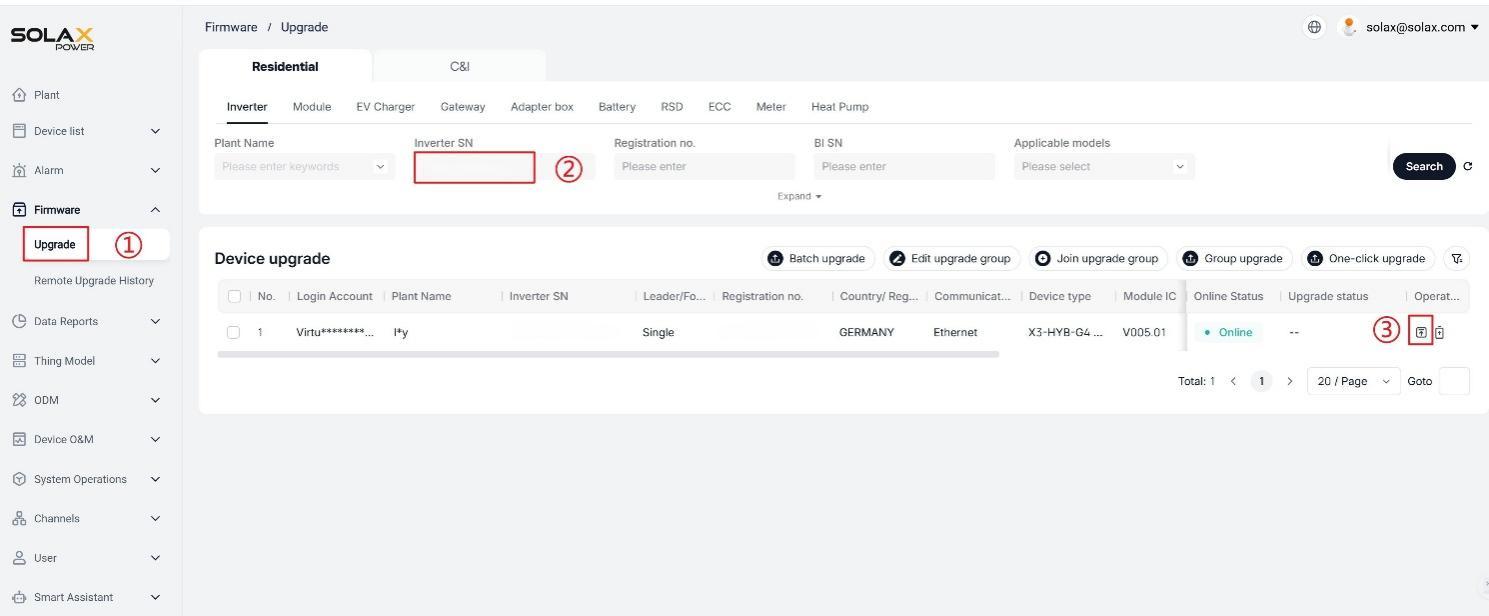
2) Select Firmware Up grade option, e nter the device's serial number, and c lick the Upgrade icon .
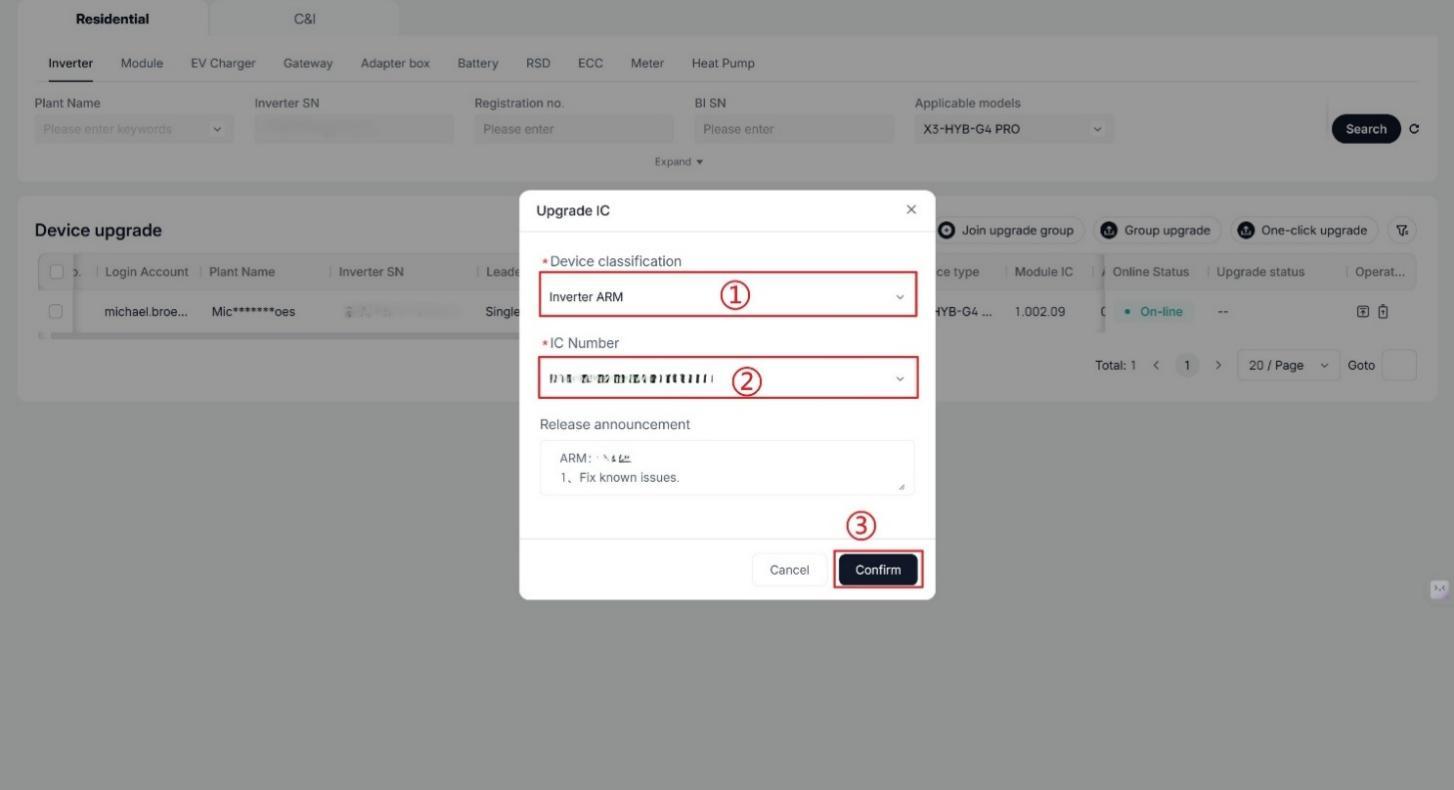
3) Confirm to upgrade Inverter ARM .
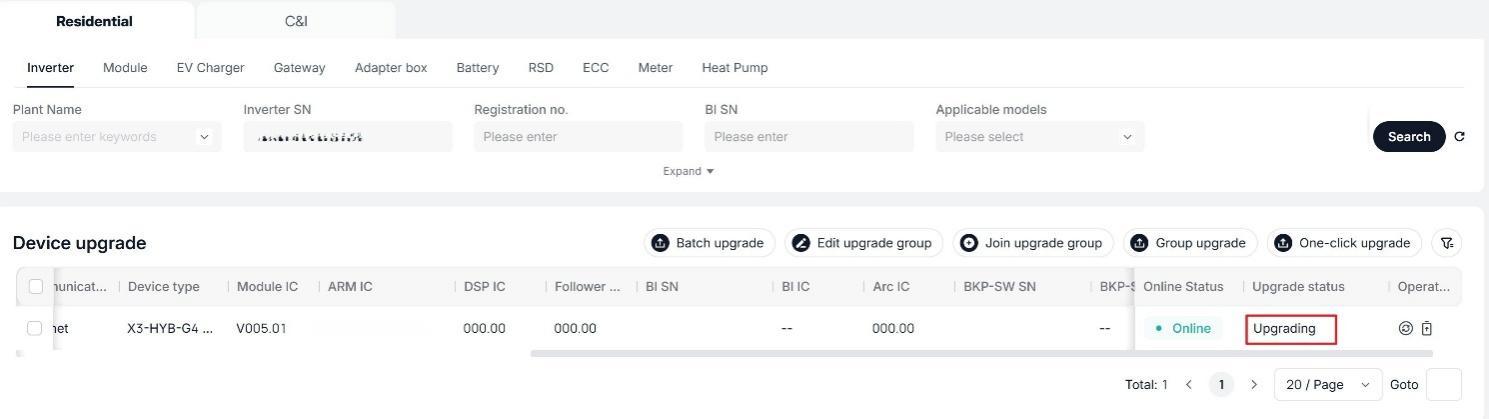
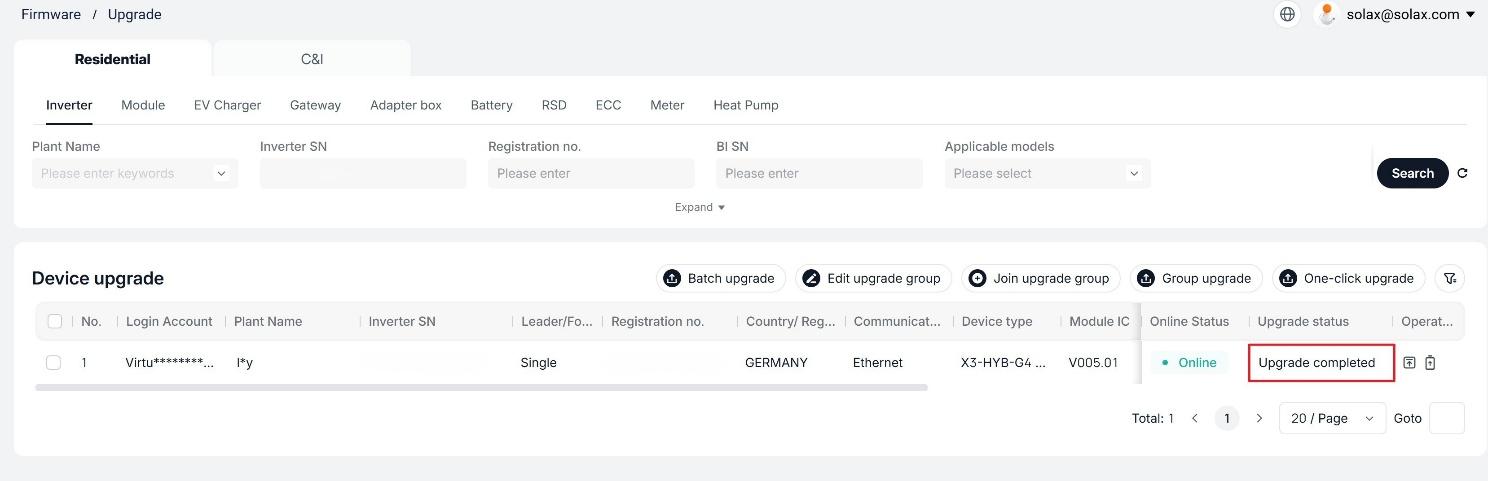
5) ARM upgrade completed.
6) Upgrade DSP version by the same operation.
7) Confirm the firmware version information.
2.2.2 Remote upgrade through APP
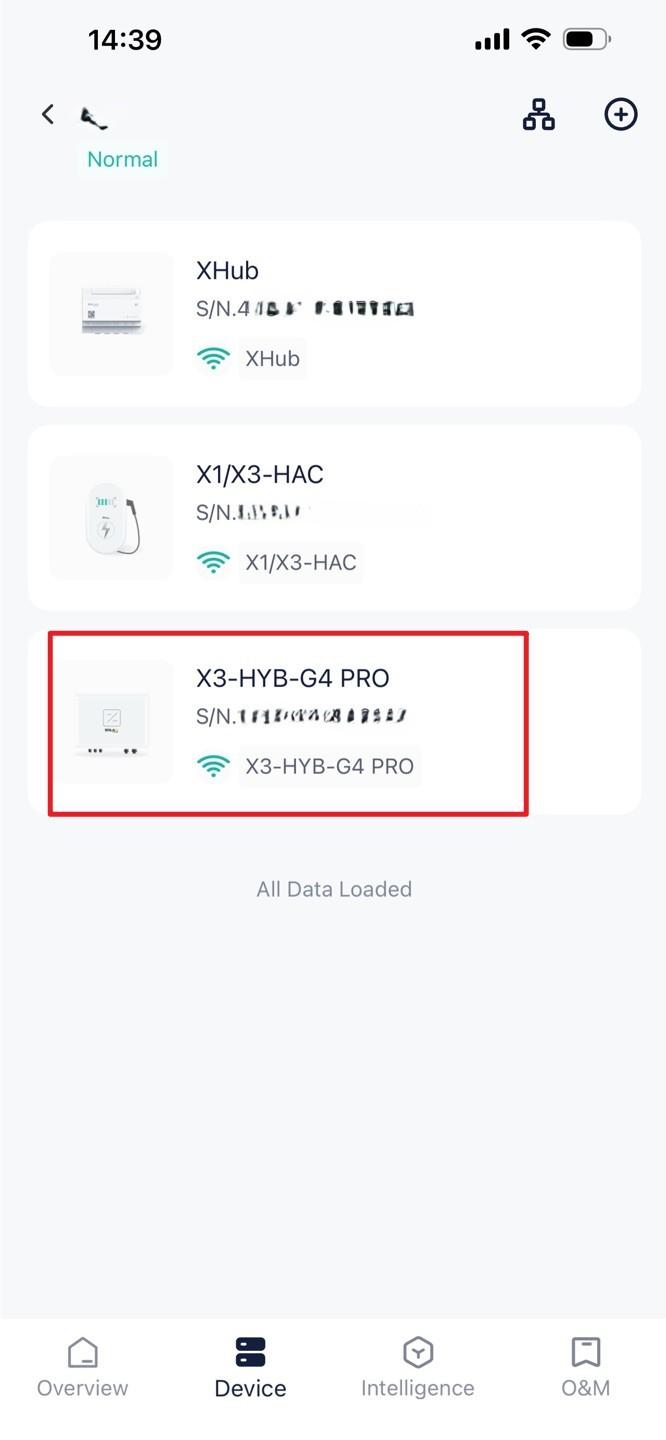
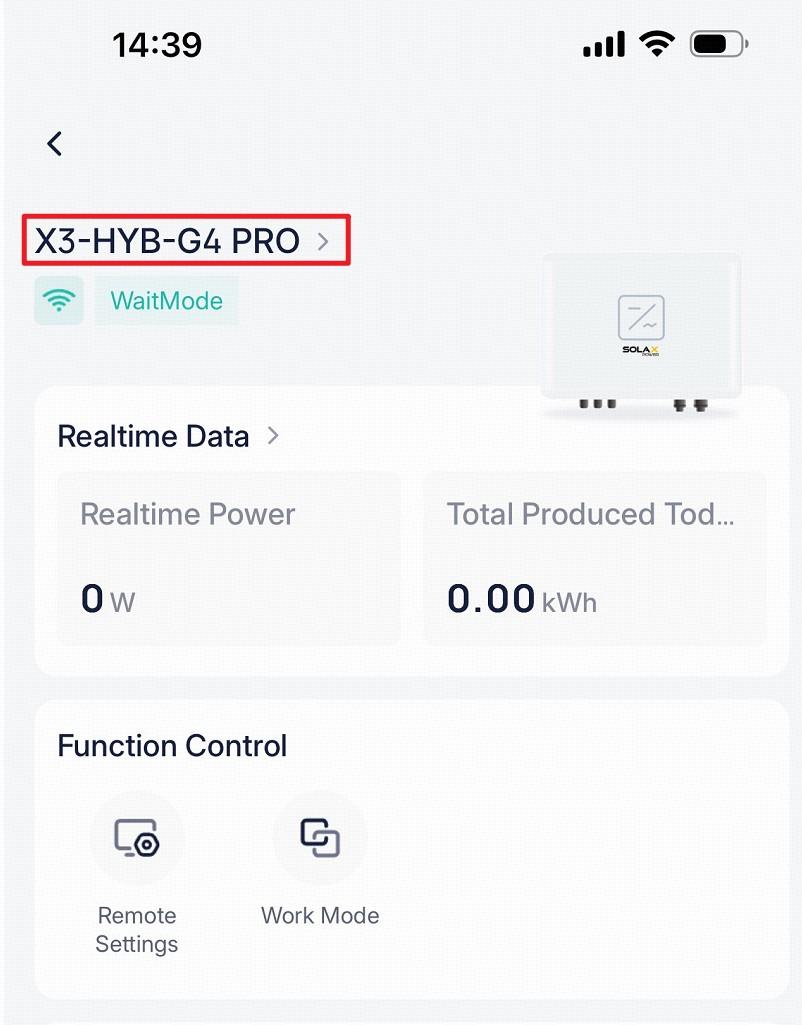
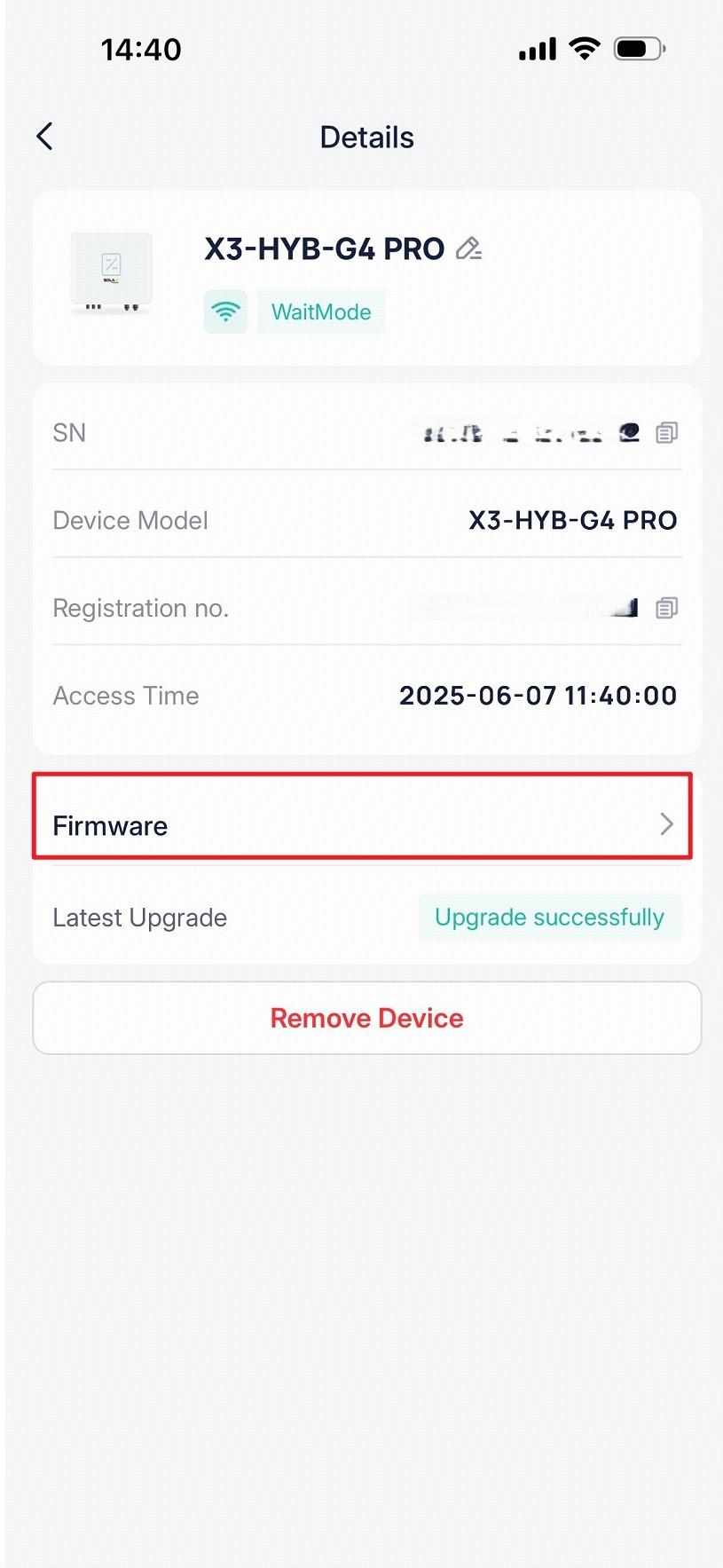
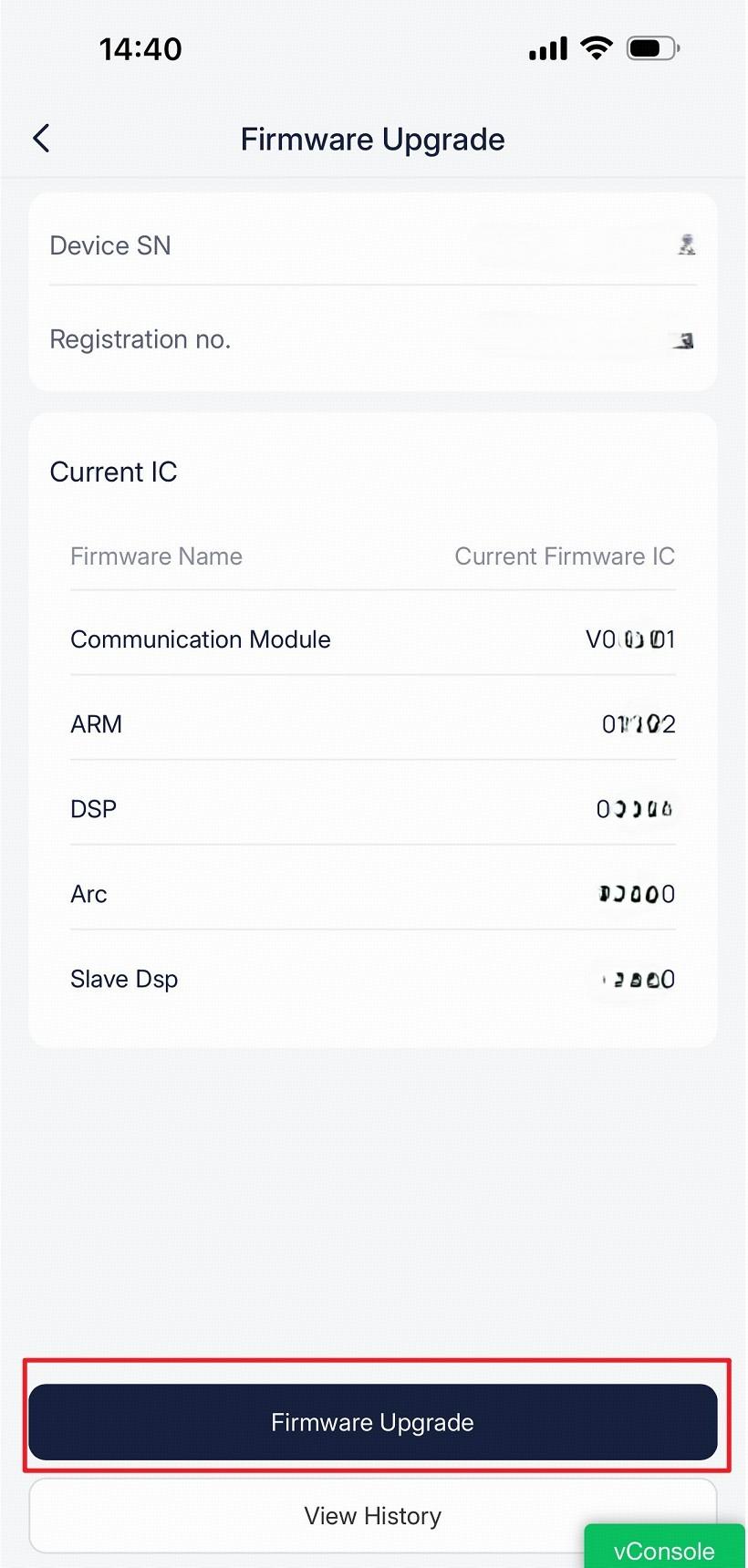
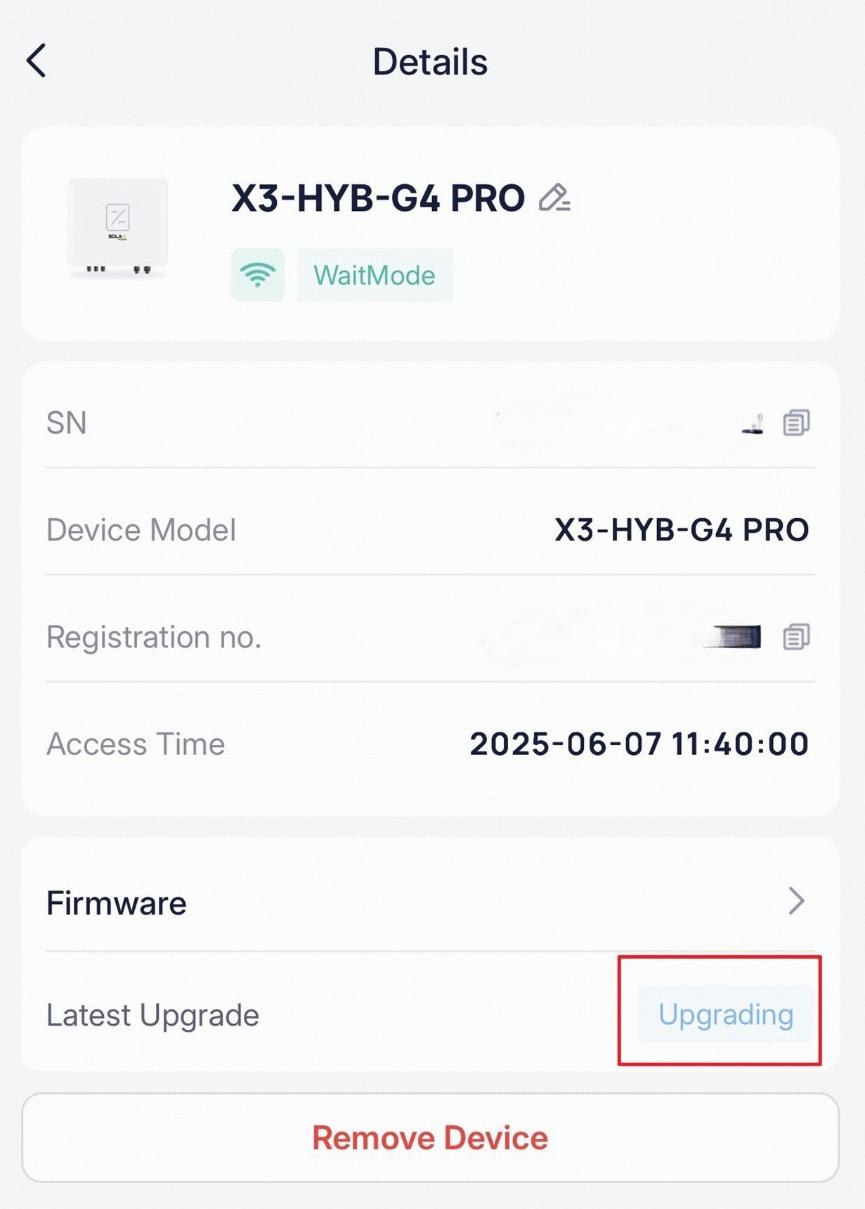
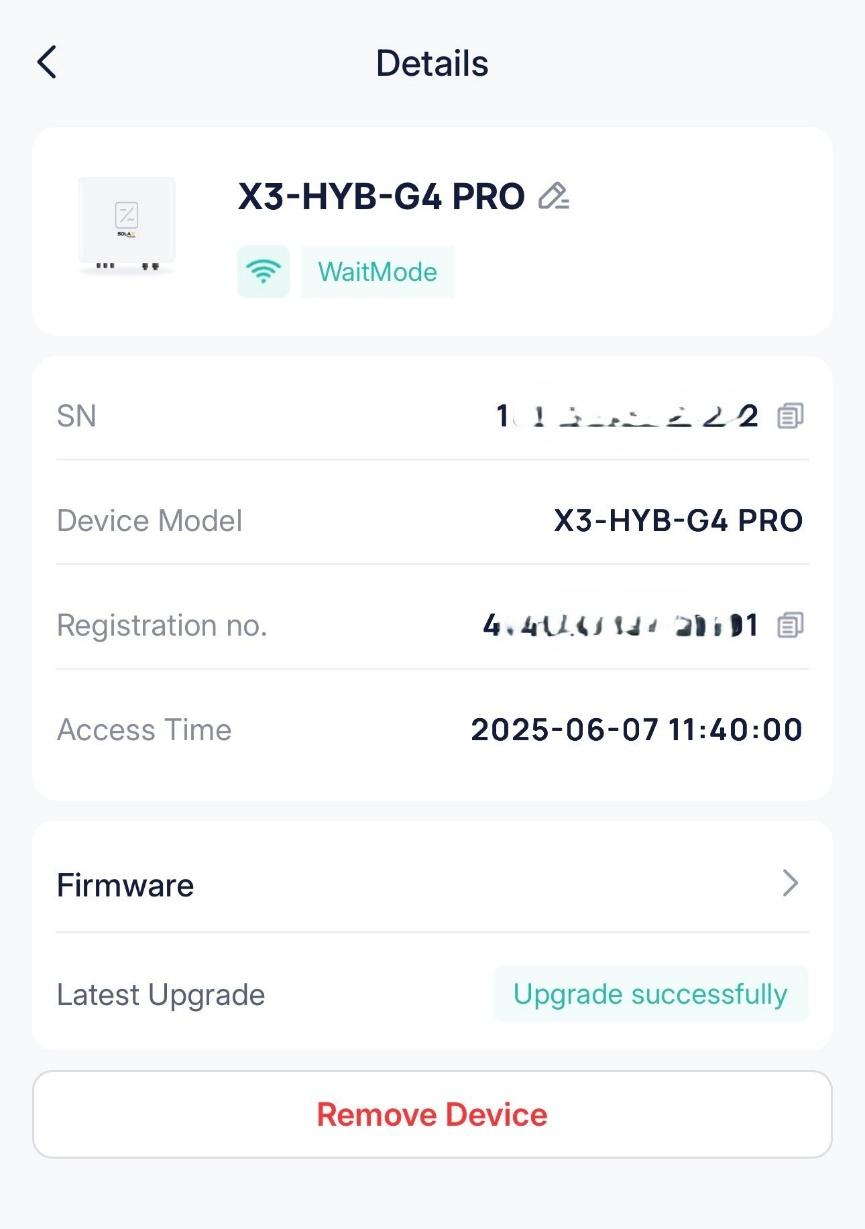
1) Select the inverter, and choose Inverter ARM.
3) ARM upgrade completed.
4) Upgrade DSP firmware version by the same operation.
5) Confirm the firmware version information.
2.2.3 Local upgrade through USB
The following steps take inverter upgrade as an example (X3-Hybrid-G4) :
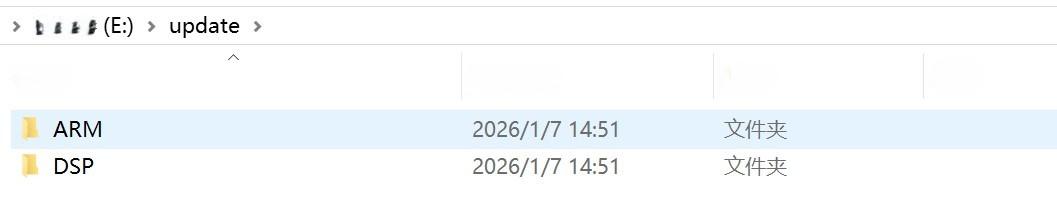
2) Prepare a USB disk, and store the firmware package following the steps below:
Ø Create an update folder, and create the ARM and DSP folders within the update directory.
Ø Place the ARM firmware file in the ARM folder. For example, the file path is saved as:
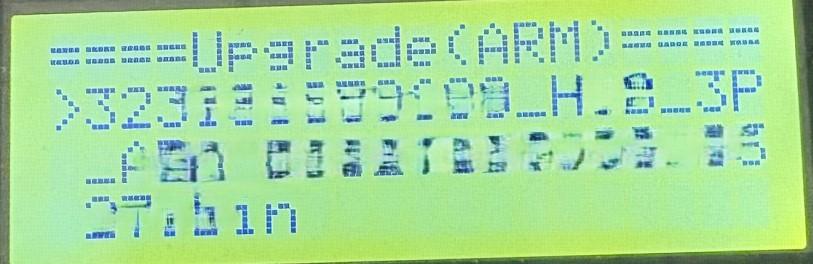
/update/ARM/323101018000_HYB_3P_ARM_V1.57_0203.usb
Ø Place the DSP firmware file in the DSP folder. For example, the file path is saved as:
/update/DSP/ 323101017900_HYB_3P_DSP_V1.59_0205.usb
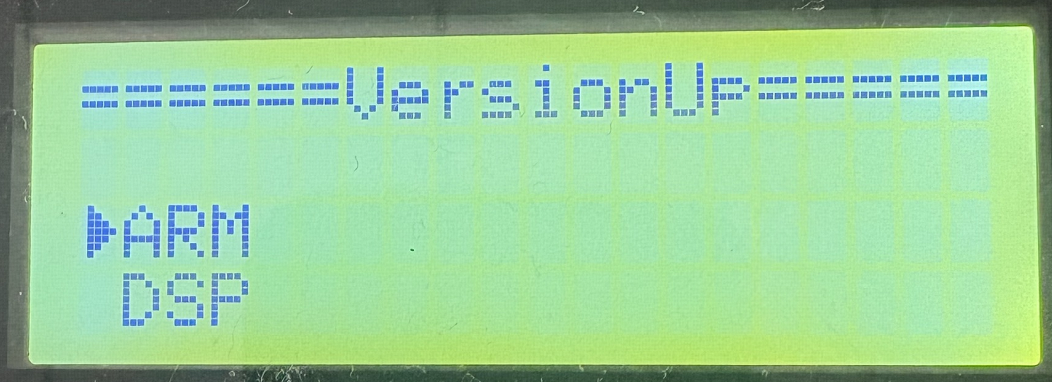
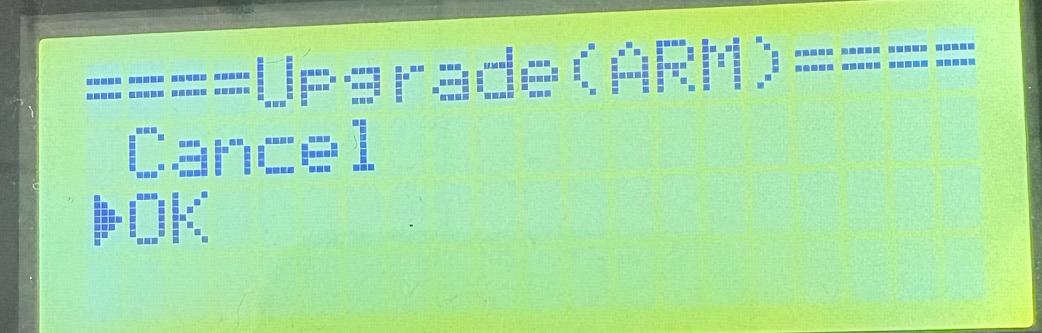
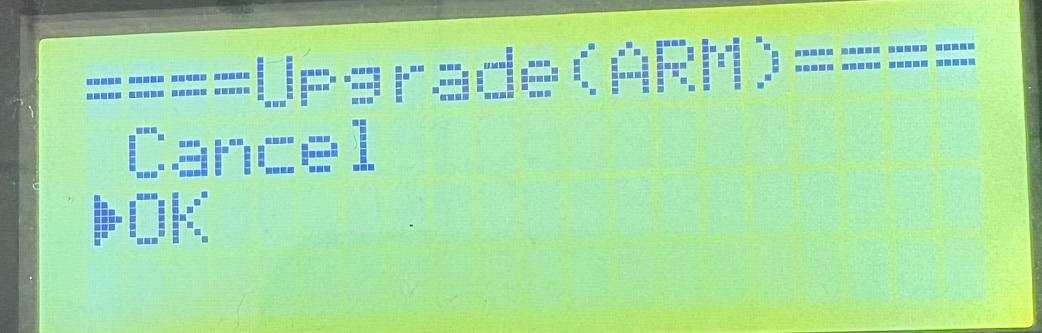
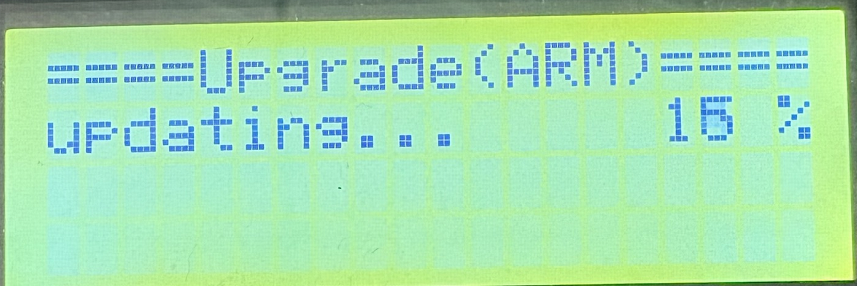
3) Insert the USB disk into the USB port of the inverter, and complete the ARM and DSP operations as below:
Ø Confirm the upgrade content.
4) Upgrade DSP by the same operations.
5) After upgrade, remove USB disk. Wait for the device restarting, and confirm whether the firmware version meets the standard.
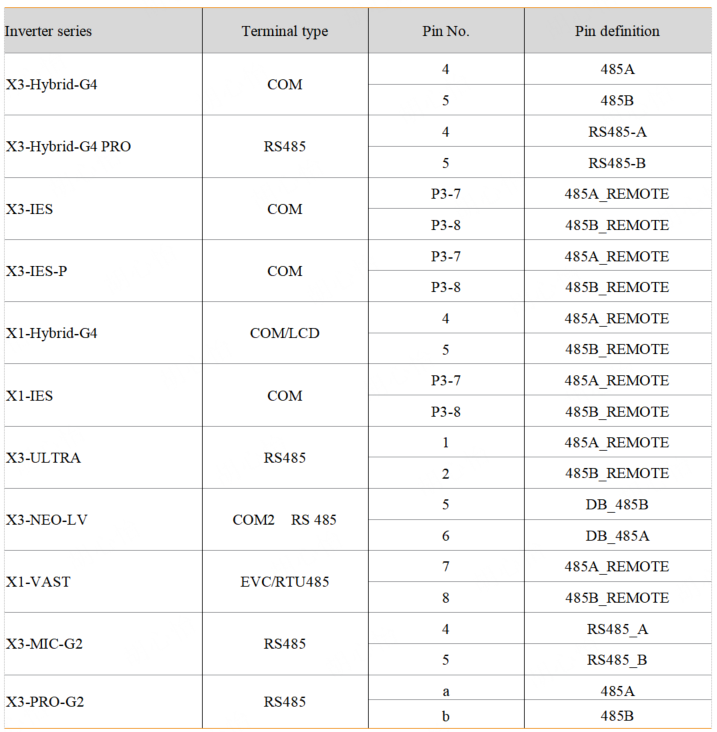
XHub can be connected to both single-phase and three-phase inverters. Please connect the corresponding inverter according to the following pin rules.
*Attention!
When connecting the XHub to an inverter, if the inverter has multiple RS485 ports, use the external RS485 port uniformly. Please visit https://xhubsupport.solaxcloud.com for the RS485 installation of inverter side in detail.
1. Only use firmware packages downloaded from official channels. Packages from non-official sources may cause device damage or compatibility issues.
2. During the upgrade process, avoid operating the core functions of the device (including the grid connection/power-off of the inverters, the start/stop of EV chargers) to avoid abnormalities.
3. Troubleshooting for upgrade failure:
Ø First, check the compatibility of the firmware package model, USB drive format, and power supply stability.
Ø If the problem persists, please contact technical support.
4. Information updates: Device firmware will continue to be iterated; it is recommended to pay attention to the official update notifications (in each technical support group).


 Chuck Lee