Introduction
This document is intended to assist installers and agents in remotely managing device upgrades and providing guidance on SOLAXCLOUD.
Please note the validity period of this document. As product demand increases, SOLAXCLOUD will progressively introduce new features while removing or adding historical devices or functionalities. This document (V1.0) is based on the SOLAXCLOUD V6.13 update and will undergo continuous revisions. Should you identify any issues with this document, please promptly email info@solaxpower.com . We sincerely appreciate your assistance and cooperation.
Notice:Only Agent account or Installer account could manage the upgrade. For End User account,please contact with upper agent or installer.
How to get the permission to manage upgrade?
We now offer 2 methods to get the permission:
1、Please sign the document 《SolaX Cloud Remote Upgrade Declaration》which you could get it by emailing SOLAX info@solaxpower.com
2、Join the SOLAX Installer Partner Program and upgrade to the GOLD Installer. Solax Super Administrator will send message to GOLD Installer whether to activate the Upgrade Permission.
Please check the modules within the table can be updated remotely.
|
Device Type
|
Device Control Module 1
|
Device Control Module 2
|
Device Comm Module
|
|
Inverter
|
ARM
|
DSP
|
Communication Module
|
|
Battery
|
Master Module
|
Slave Module
|
|
|
EV charger
|
ARM
|
|
WIFI
|
|
DATAHUB
|
Software Version
|
|
|
|
Adapter box G2
|
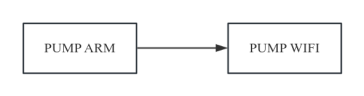
Pump ARM
|
|
Pump WIFI
|
|
RSD
|
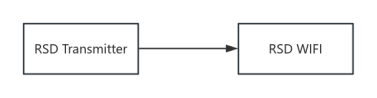
RSD Transmitter
|
|
RSD WIFI
|
|
ECC
|
Software Version
|
|
|
|
Meter
|
Software Version
|
|
|
|
Heat Pump
|
Software Version
|
|
|
For specific upgradeable modules, please refer to SolaxCloud.
Devices Upgrade Access Path (Single Device Example: Inverter)
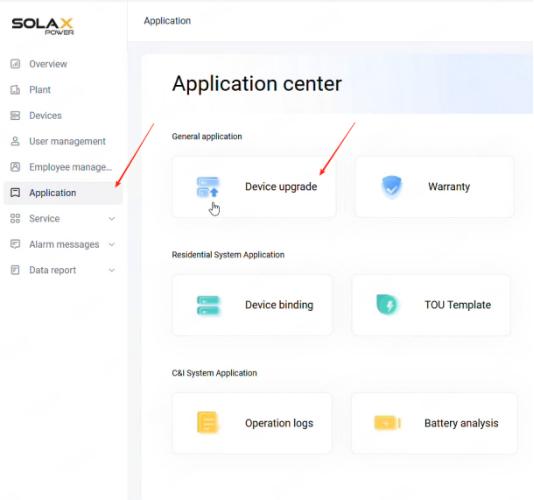
Step 1: Please click the “Application” Button
Step 2:Please click the “Device Upgrade” to manage Upgrade
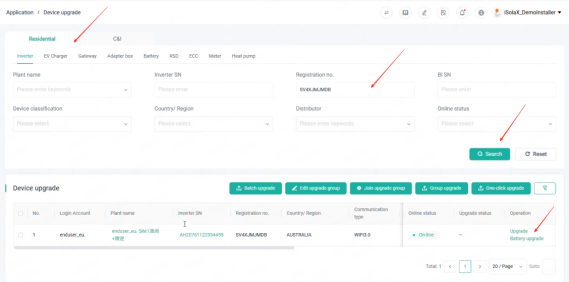
Step 3:Please check the “Residential” or “C&I” section to operate the device need to be upgraded.“Residential” section includes Inverter/EV charger/Gateway/ Adapter box /Battery/RSD/ECC/Meter/Heat Pump
Step 4:Please enter the serials number of the device,and click the “Search” button
Step 5:Click the “Upgrade” button to select the target software version. Please check the Online Status,If the device is off-line,It can not be upgrade remotely.
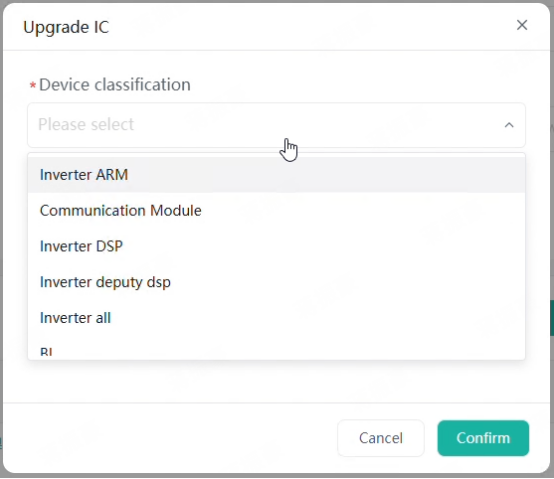
Step 6:Click the device classification to select the target device upgrade module includes Inverter ARM/Communication Module/Inverter DSP/Inverter deputy dsp/Inverter all/BI/BKP-SW
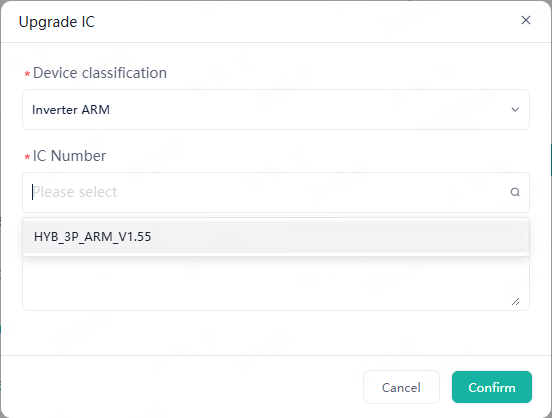
Step 7:Choose the correct IC number to upgrade the target device module(See as screenshot 4).Usually there will be only one selection displayed if the upgrade available.If tow or more selection displayed,which means it matches different inverter type.Please contact technology-team to get the correct version.If nothing displayed and “No updatable IC” appears, which means the device is already the latest version or the current module you select is not available for upgrading.
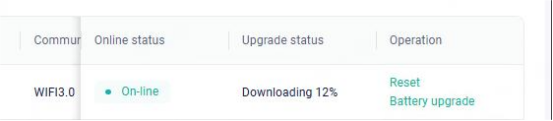
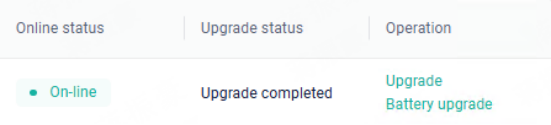
Step 8:Please click “Confirm” button and wait for some minutes.There will be a note “Updating,Please wait patiently for the update to compete”displayed,shown as screenshot 5 below.The process will be displayed digitally along with the upgrade,shown as screenshot 6 below.Upgrade process finished with the display of “Upgrade completed”,shown as screenshot 7 below.
Step 9:Please upgrade the communication module and DSP module later.
The above steps detail how to upgrade the inverter module.However,For a residential home storage system, customers may still need to upgrade other devices such as batteries, EVC, and data hubs,etc.
For better user experience,Battery upgrade also support to be upgraded in inverter page.
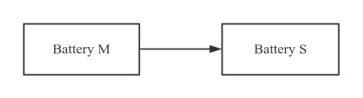
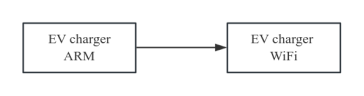
Recommended devices upgrade sequence
For some Solax products, only one module needs to be upgraded, or upgrades are not supported,includes some types of On-grid inverter(MEGE,FORTH,etc.)
Troubleshooting
|
Issue
|
Reason
|
Solution
|
|
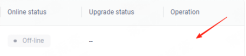
No “upgrade” button shown
|
The device is not on-line
|
Connect the device to the SOLAXCLOUD or upgrade it locally
|
|
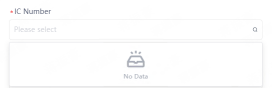
“No updatable IC” displayed
|
The module is already the latest version or the module does not support upgrades
|
1,change or select the module to upgrade or refresh the web page
2,Connect SOALX after-sale
|
|
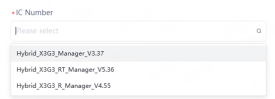
two or more version items displayed
|
The inverter is assembled with chips from different manufacturers.
|
1. Check the original version information of the inverter and confirm the first number of the version.
2. Upgrade the corresponding version based on that number. Example: ARM version 4.37 → 4.55.
3. Contact SOLAX after-sale
|
|
Both ARM module and DSP module can not be upgraded
|
Only suitable for C&I On-grid Inverters
|
1,Check the “Inverter all” item
2,Upgrade the inverter all modules by one item.
|
The above list only covers some of the issues. If you encounter any other problems not addressed in this document, please contact SOLAX Support as soon as possible.
|
Issue
|
Reason
|
Solution
|
|
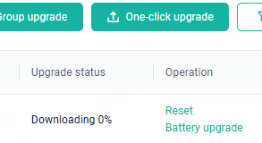
Upgrade status stuck in 0%,shown as “Downloading 0%”
|
Network issue or platform/server issue
|
1,Wait for some minutes and refresh the web page
2,Click “Reset” and upgrade the device again.
3,Contact SOALX After-sales
|
|
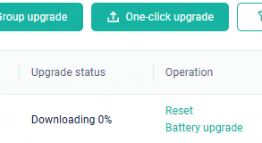
Upgrade status stuck in 0%,shown as “Downloading 0%”.Especially when upgrading DSP module.
|
Device issue,Includes software issue and hardware issue
|
1,re-connect the dongle and inverter
2,Confirm if the DC power is available.Please noticed that the upgrade process will be failed without DC power.
|
|
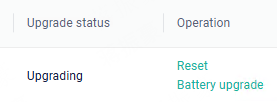
Upgrade status stuck in Upgrading,shown as “Upgrading”, and It's stuck in this state.
|
Network issue,Includes dongle issue,router issue and platform issue
|
1,Refresh the web page to check if it’s normal
2,Click the “Reset” button,and re-upgrade the module again.And back to step 1.
3,re-connect the dongle and back to step 2.
4,Contact SOALX After-sales
|
|
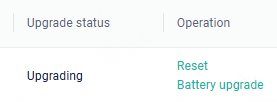
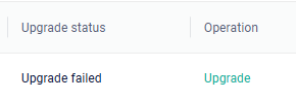
Upgrade status stuck in Upgrading,shown as “Upgrading”. And report “Upgrade failed” later.
|
Network issue,includes router issue,dongle issue and platform issue.
Installation issue,includes module hardware issue and power issue
|
1,Check if DC power is available,or DSP upgrade will fail.
2,Click “Upgrade” button to re-upgrade the module. Could be attempted multi-times.
3,Check the network.
4,Contact SOALX After-sales
|
The above list only covers some of the issues. If you encounter any other problems not addressed in this document, please contact SOLAX Support as soon as possible.
|
Issue
|
Reason
|
Solution
|
|
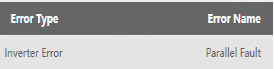
Inverter reports “parallel fault”
|
Version inconsistencies between parallel systems
|
Upgrade the all Leader and Follower devices to the same version.
|
|
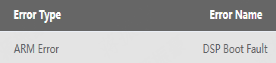
Inverter reports “DSP Boot fault”
|
Inverter DSP upgrade failed and version reverse to 0.00
|
Check the presence of DC power and re-upgrade it.
|
The above list only covers some of the issues. If you encounter any other problems not addressed in this document, please contact SOLAX Support as soon as possible.


 Chuck Lee