Electricity Price Strategy
The electricity price strategy refers to users being able to create multiple electricity price templates on the industrial and commercial storage cloud platform, so that they can be used at any time according to different occasions, as shown in the figure below. These electricity price strategies are used to calculate specific profits and design intelligent algorithms to provide users with strategy recommendations.
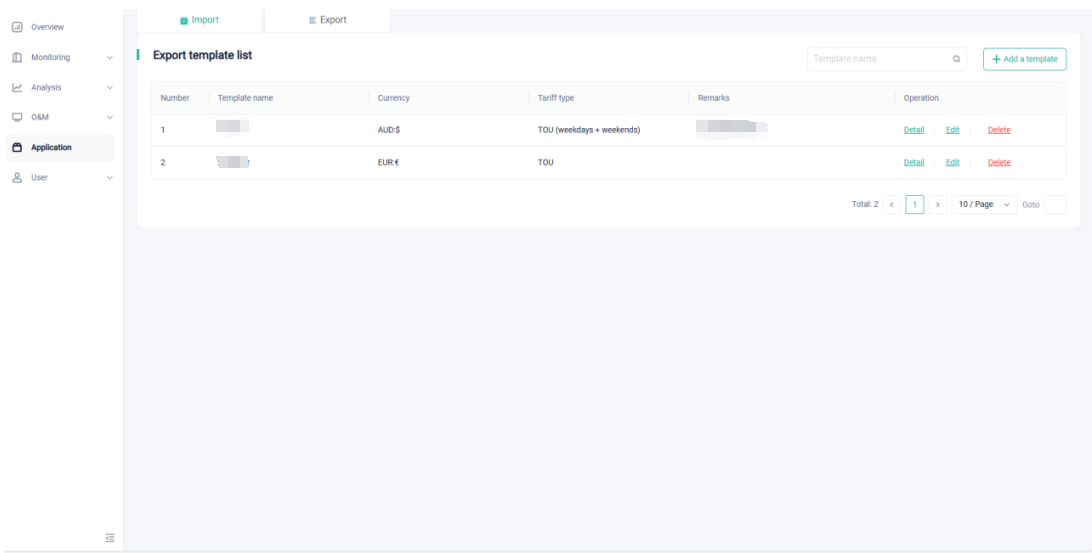
Figure 1 Electricity Price Template
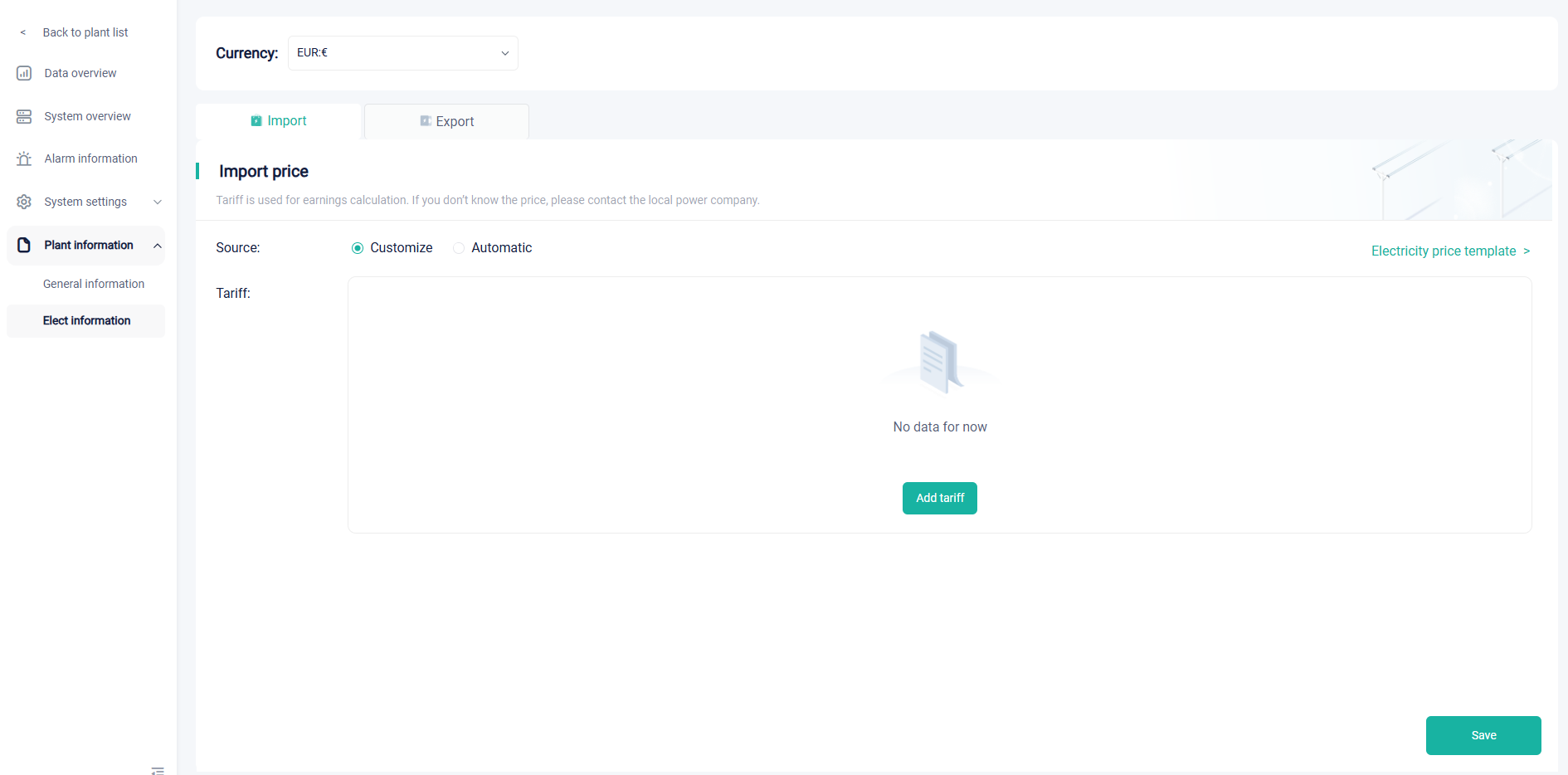
Figure 2 Use Electricity Price Template
Electricity Price Acquisition Mode
The electricity price acquisition modes are divided into two types: import electricity price acquisition mode and export electricity price acquisition mode. The import electricity price acquisition mode includes custom and automatic acquisition methods. The custom method allows users to apply templates, specifically including Time-Of-Use(TOU) electricity price, Time-Of-Use(TOU) electricity price (weekdays + weekends), and fixed electricity price. The export electricity price acquisition mode mainly includes custom, automatic acquisition, and non-selling methods. The custom method is similar to the import electricity price acquisition mode. Currently, only some countries (as shown in the table below) have the function of automatically obtaining electricity prices.
Table 1 Countries with automatic electricity pricing
|
Country Name(Country Code)
|
Delivery Areas
|
|
Austria(AT)
|
AT
|
|
Belgium(BE)
|
BE
|
|
Germany(DE)
|
DE,DE-LU,50Hz,AMP,TTG,TBW
|
|
Denmark(DK)
|
DK,DK1,DK2
|
|
Estonia(EE)
|
EE
|
|
Finland (Fl)
|
FI
|
|
France (FR)
|
FR
|
|
United Kingdom(GB)
|
UK,GB1,GB
|
|
Lithuania (LT)
|
LT
|
|
Luxembourg(LU)
|
DE-LU
|
|
Latvia (LV)
|
LV
|
|
Netherlands (NL)
|
NL
|
|
Norway(NO)
|
NO,NO1,NO2,NO3,NO4,.NO5
|
|
Poland (PL)
|
PL,PLC
|
|
Sweden(SE)
|
SE,SE1 ,SE2,SE3,SE4
|
Specific Setup Steps for Web
- Electricity Price Template
First, go to the website https://www.solaxcloud.com/user-center/ to access the login page of the cloud platform (as shown in the figure below). Then enter the C&I storage account, click Log in, and complete the platform login.
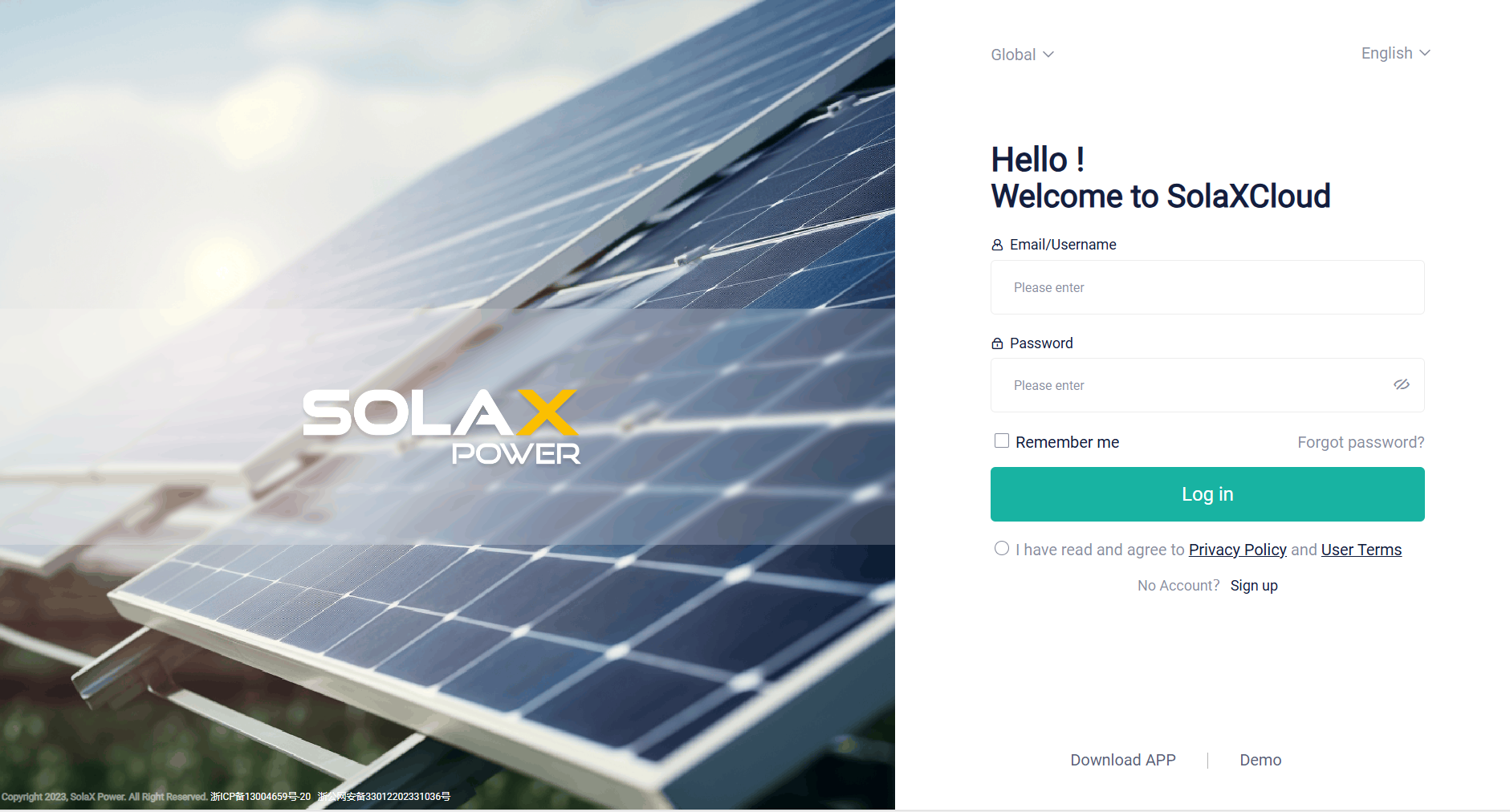
Figure 3 Login Page of the Cloud Platform
Next, click on the 'Application' in the menu bar on the homepage, and then click on the 'Electricity price template' to enter the electricity price setting interface(as shown in the figure below).As indicated by label 1, Import represents the setting for import electricity prices, and Export represents the setting for export electricity prices. Label 2 indicates that we can add a new template by clicking here.
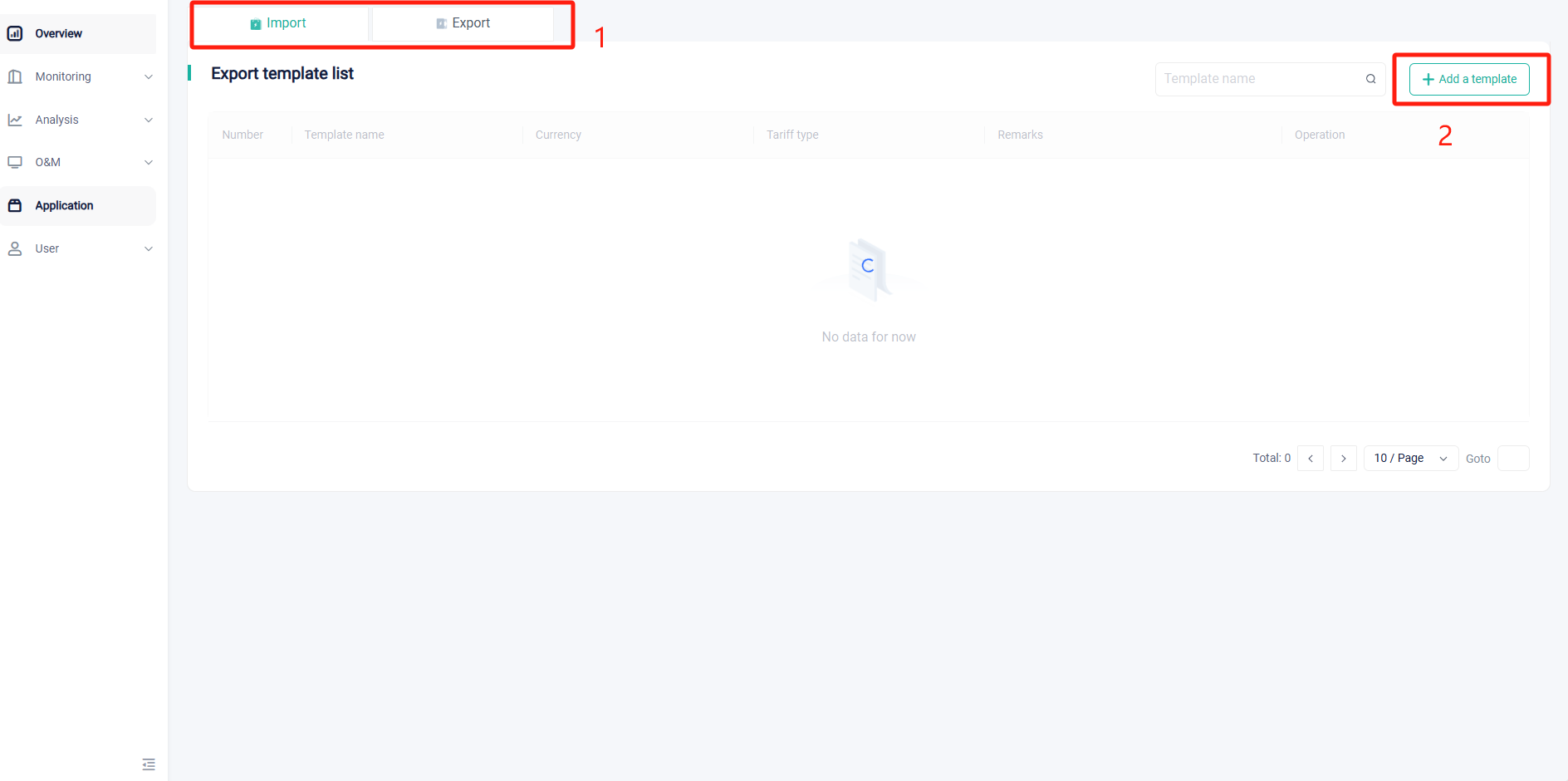
Figure 4 Electricity Price Setting Interface
After we click add a template button,We can customize and set our electricity price template.
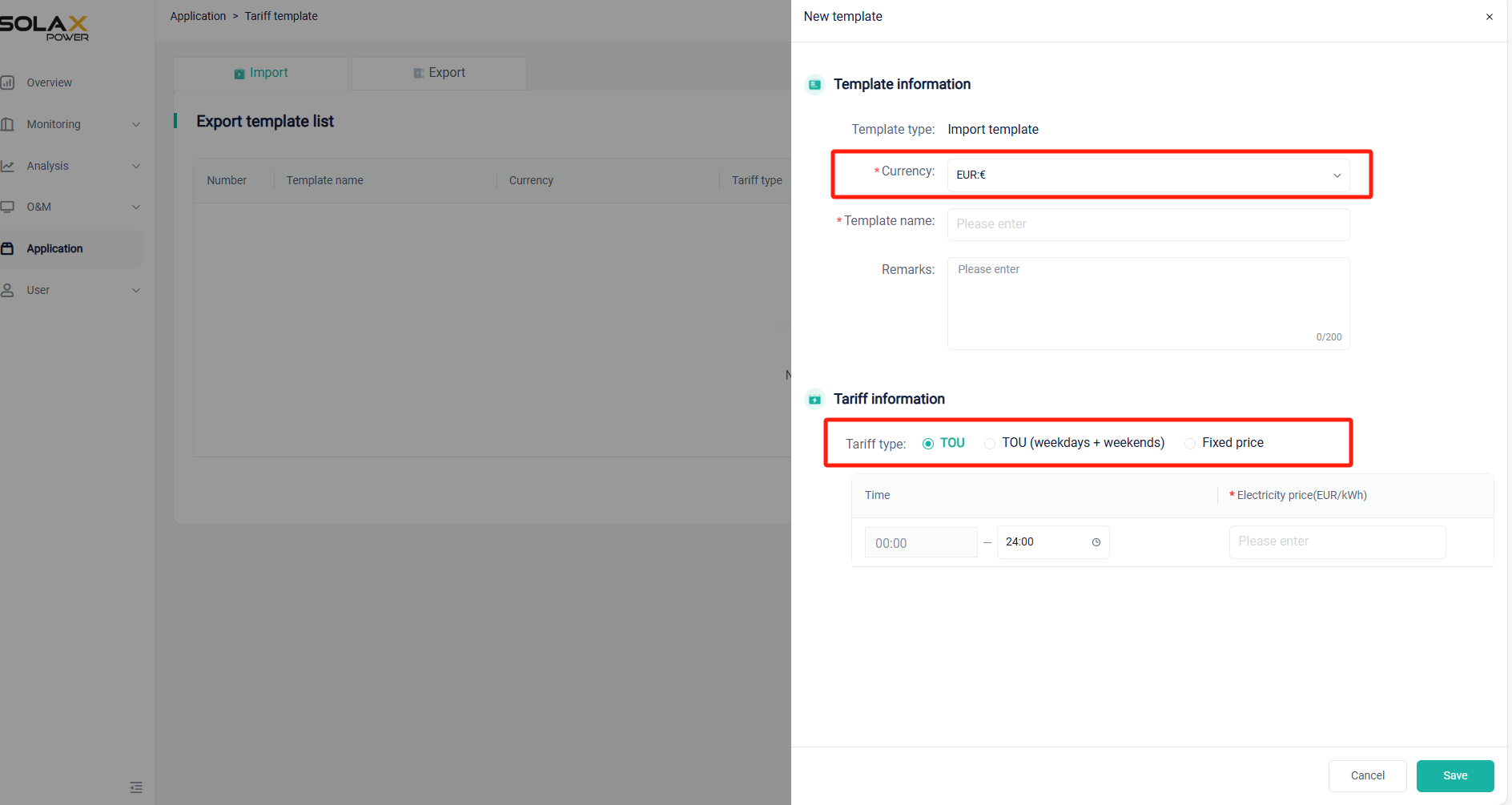
Figure 5 Electricity Price Setting Interface
In the electricity price template setting of the international version industrial and commercial storage platform, the currency is editable, and the Time-Of-Use(TOU) electricity price is distinguished between weekdays and weekends.
- Electricity Price Setting
After the electricity price template is set up, you can enter the corresponding station to set specific electricity prices. The path to enter is to click Monitoring on the homepage, select Plant list, and then click on the station that needs to be set to enter the electricity price setting interface.And then click the Elect information in the Plant information.The related pictures are showing as follows.
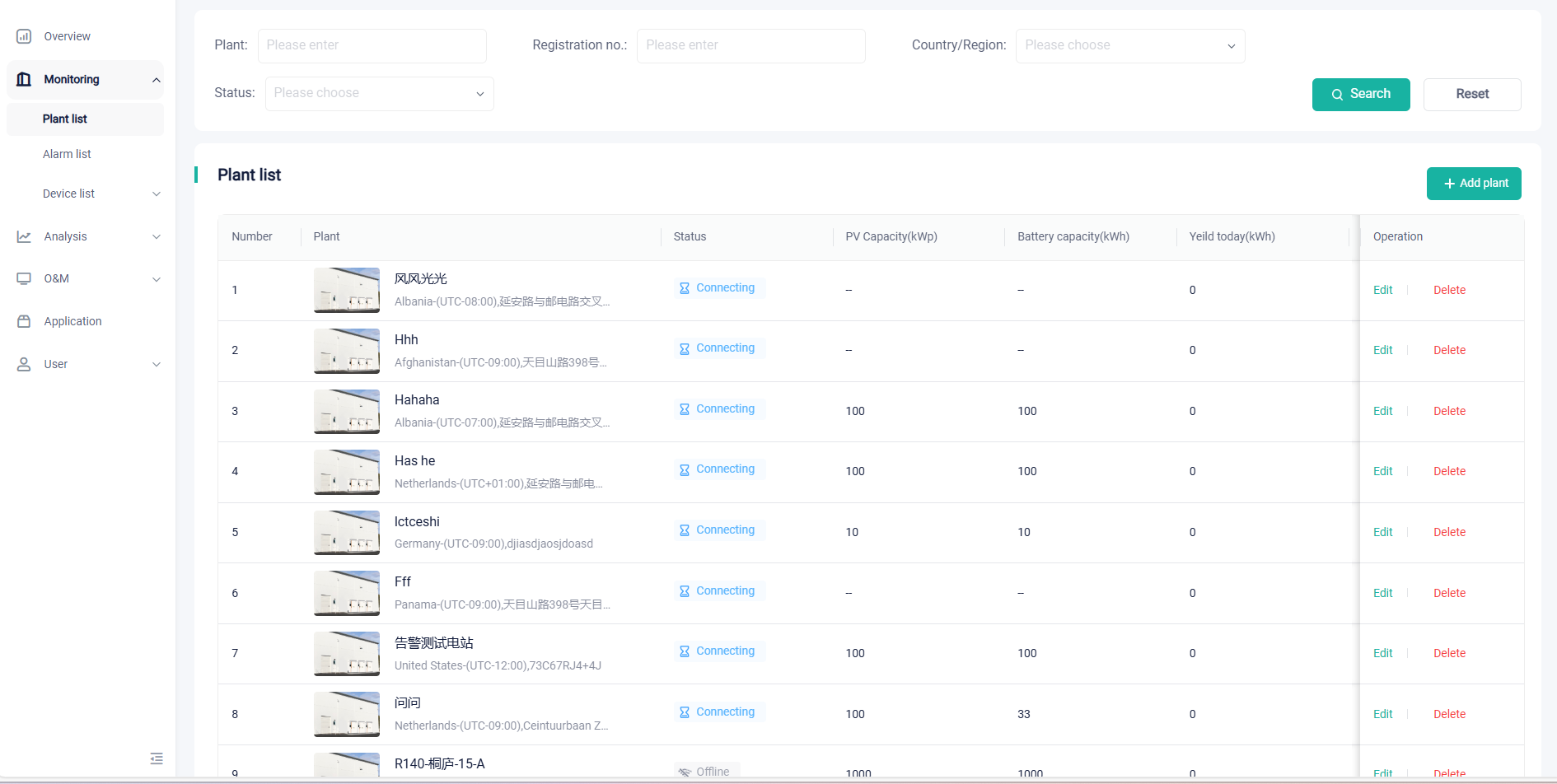
Figure 6 Station Entrance Interface
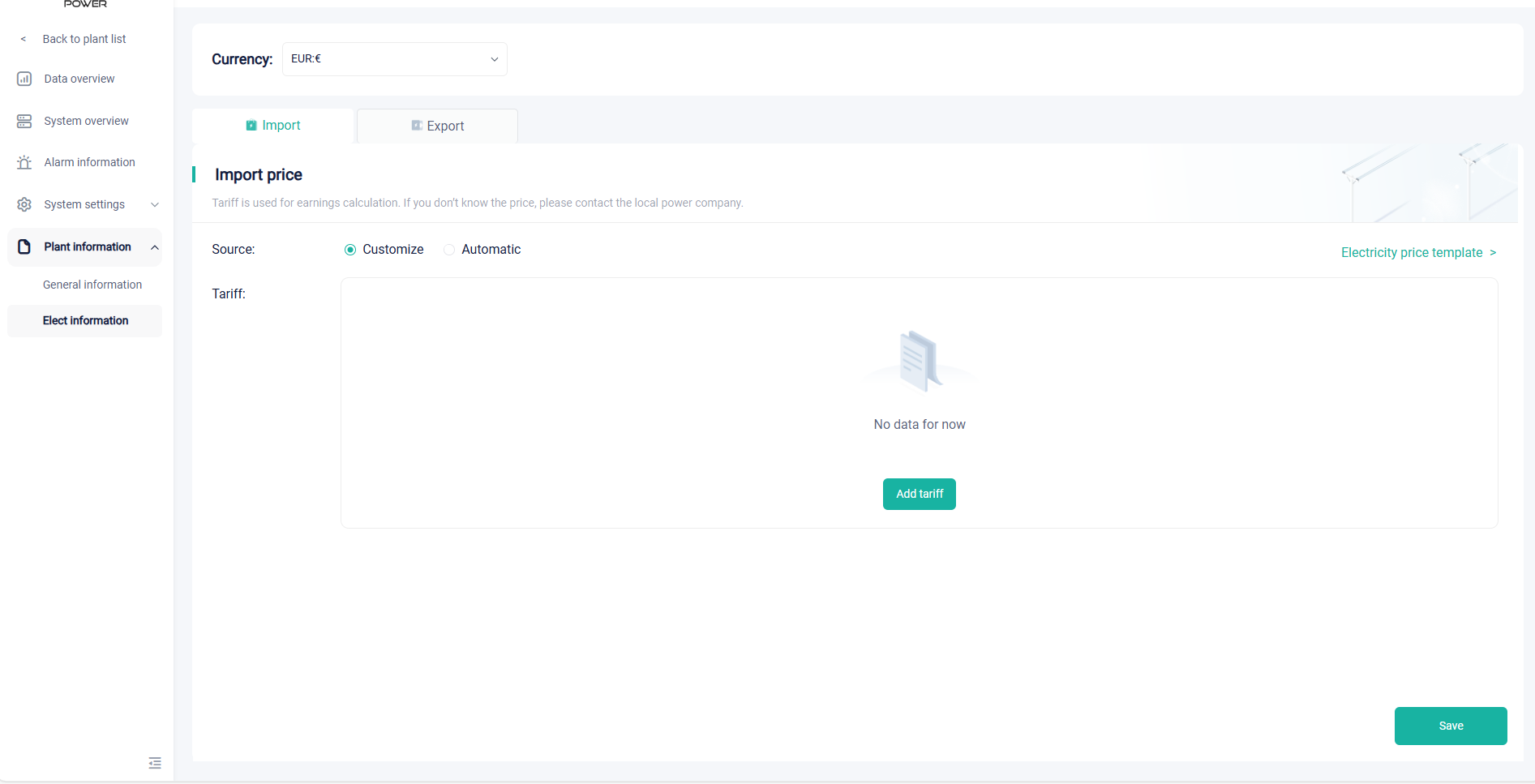
Figure 7 Electricity Price Setting Interface
After we click add tariff,we can access the interface where we can set the electricity price for the plant station.
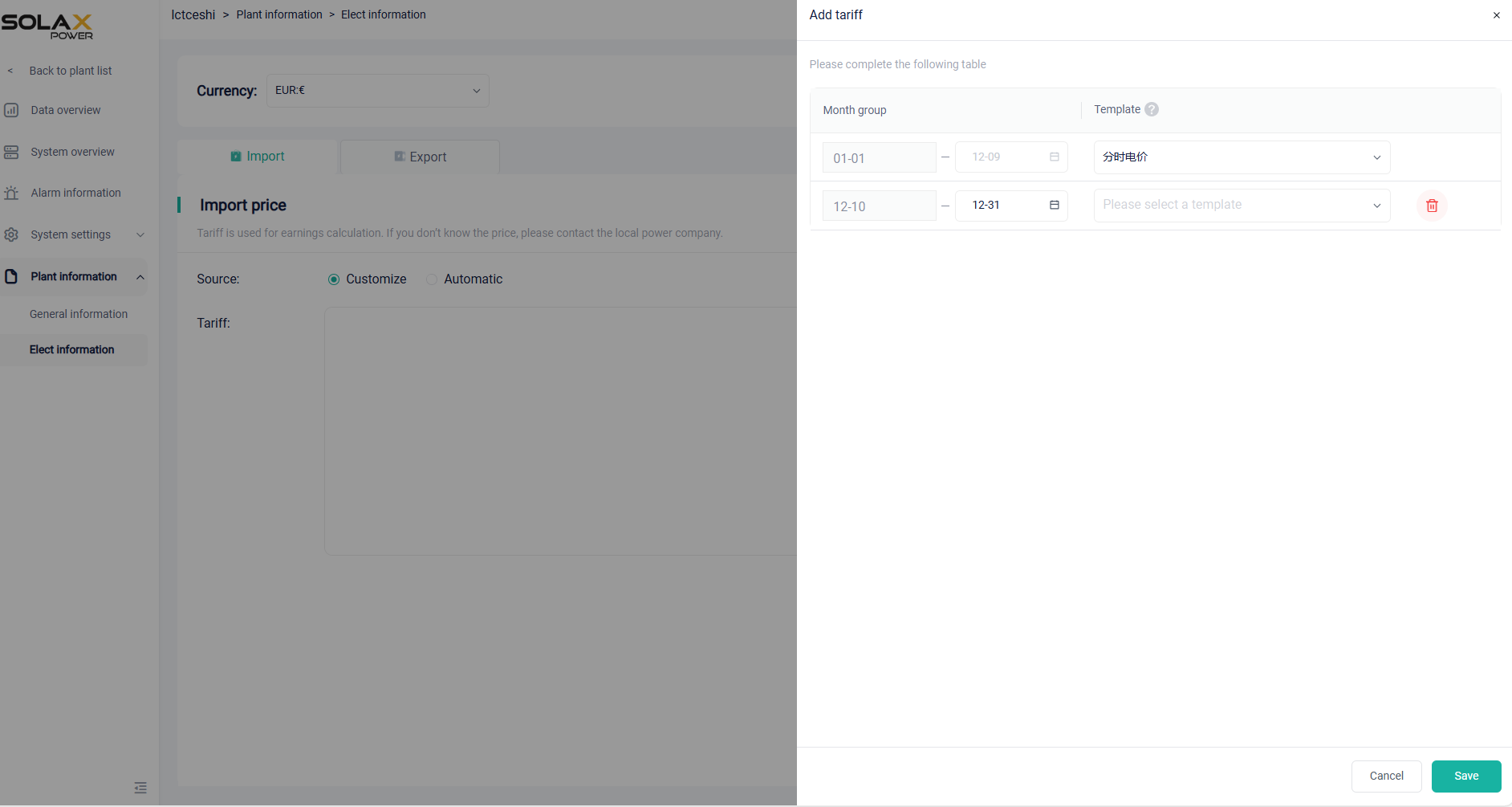
Figure 8 Electricity Price Setting for Station
The electricity price is set to custom settings by default, which means that users can import previously configured templates during the setting process.Users can choose a pricing template that is the same as the currency unit of the station.The date follows an auto-complete mode, similar to the time configuration in the electricity price template.After setting the electricity price, click save to complete the setting for the station electricity price.
Specific Setup Steps for App
- Electricity Price Template
First, download the SolaXCloud App to access the login page of the cloud platform (as shown in the figure below). Then enter the C&I storage account, click Log in, and complete the platform login.
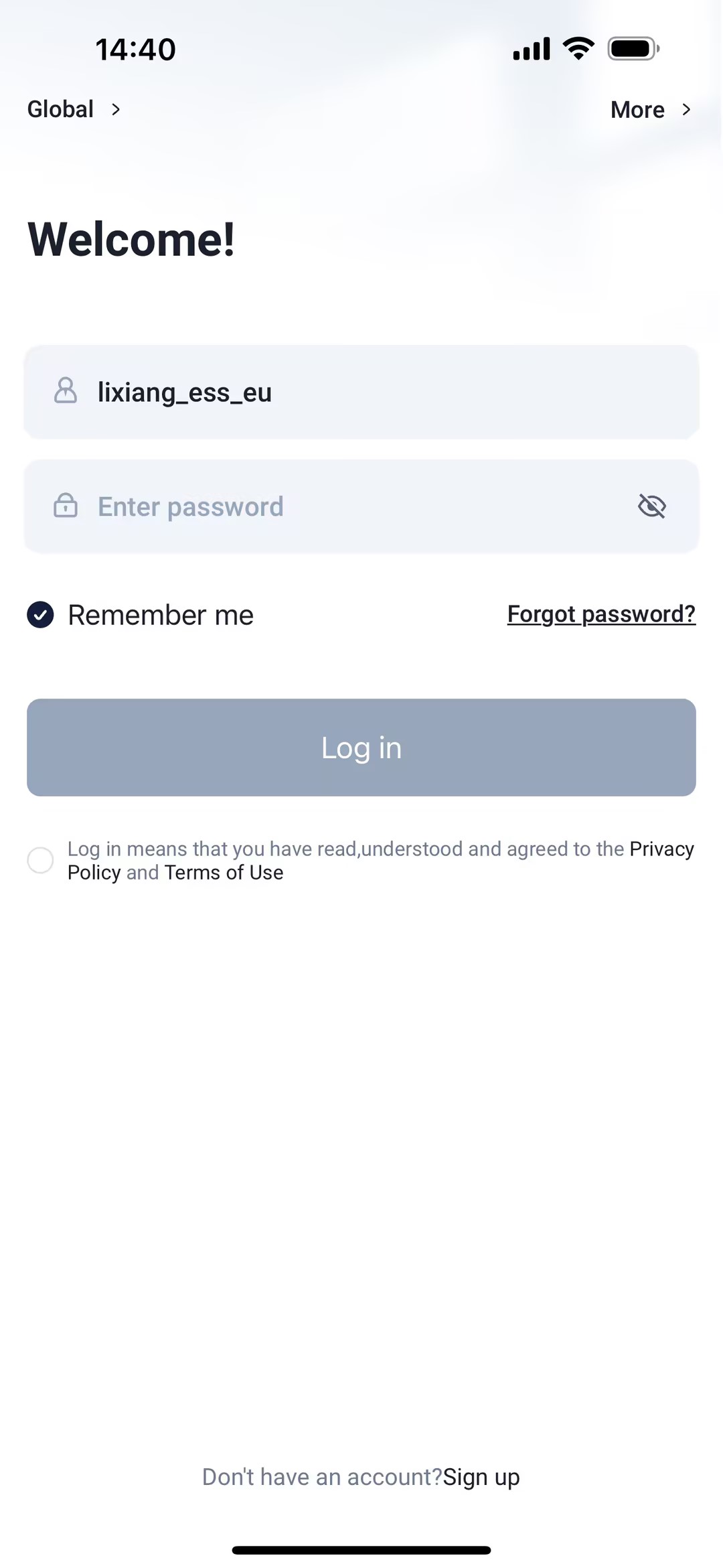
Figure 9 Login Page of the Cloud Platform(App)
Next, click on the 'Application' in the menu bar at the bottom, and then click on the 'Electricity price template' to enter the electricity price setting interface(as shown in the figure below).As indicated by label 1, From grid represents the setting for import electricity prices, and To grid represents the setting for export electricity prices. Label 2 indicates that we can add a new template by clicking here.
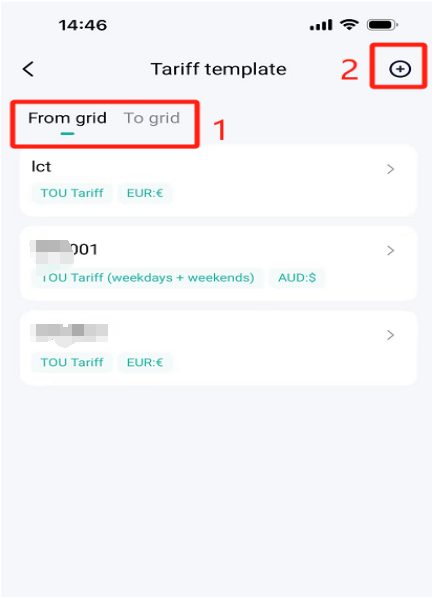
Figure 10 Electricity Price Setting Interface(App)
After we click add button,We can customize and set our electricity price template.
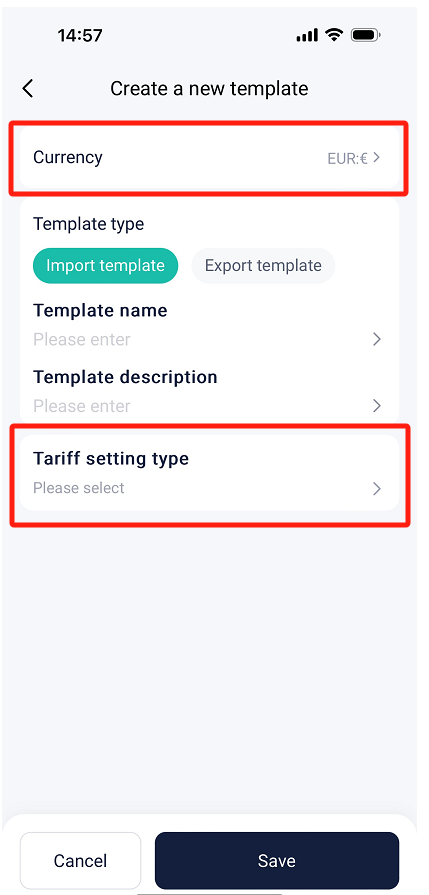
Figure 11 Electricity Price Setting Interface(App)
2. Electricity Price Setting
After completing the electricity price template,click the Plant button at the bottom menu to select the station you want to set the electricity price,and then click the Tariff configuration button to set the electricity price for the corresponding station.The picture is showing as follows.
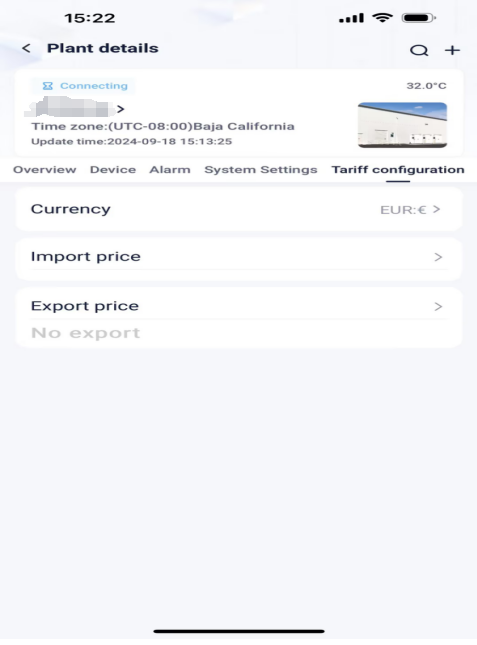
Figure 12 Electricity Price Setting for Station(App)


 Chuck Lee