This document aims to clarify the following topics for Distributors and Installers:
1. The differences between Installer accounts and Distributor accounts.
2. Current methods for installers and distributors to register an account.
3. A explanation of the Channel Management features available exclusively to Distributor accounts.
1. Difference between Installer Accounts and Distributor Accounts:
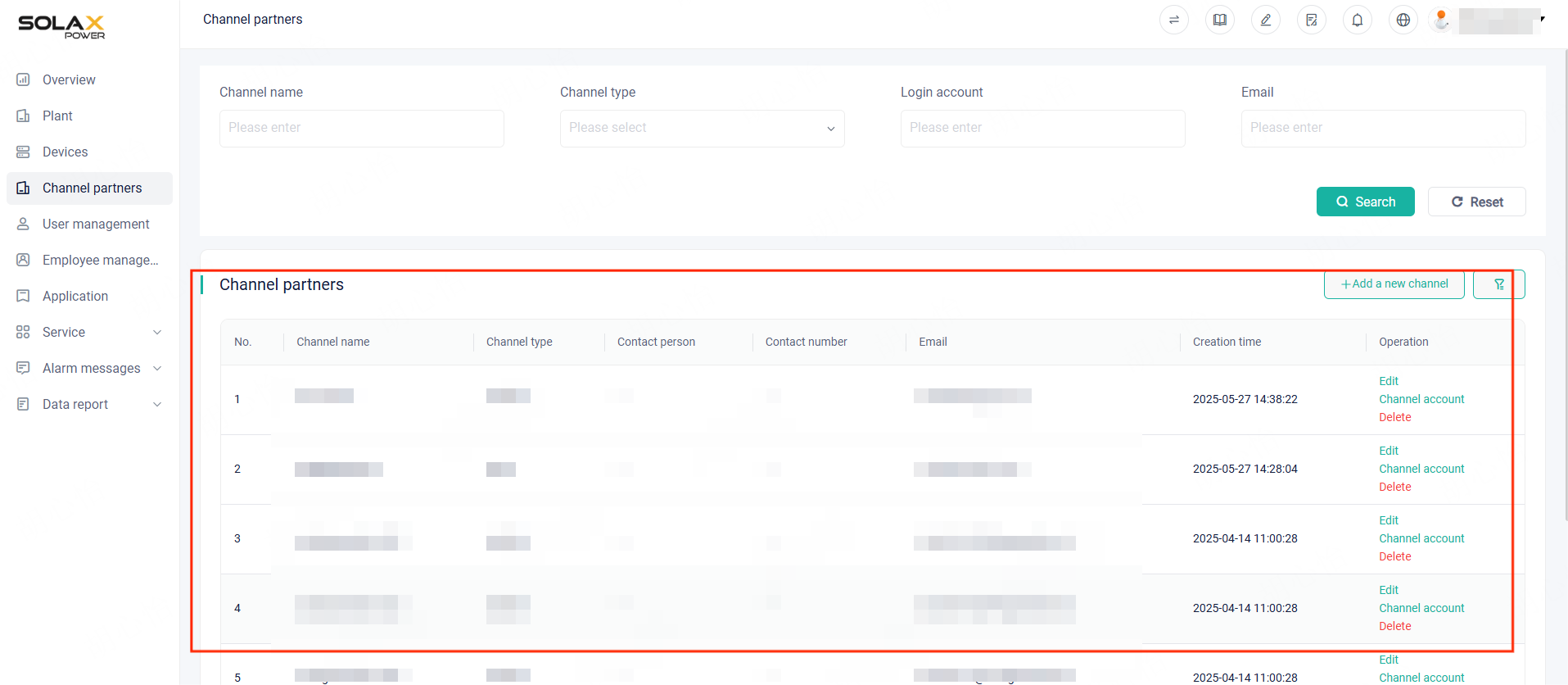
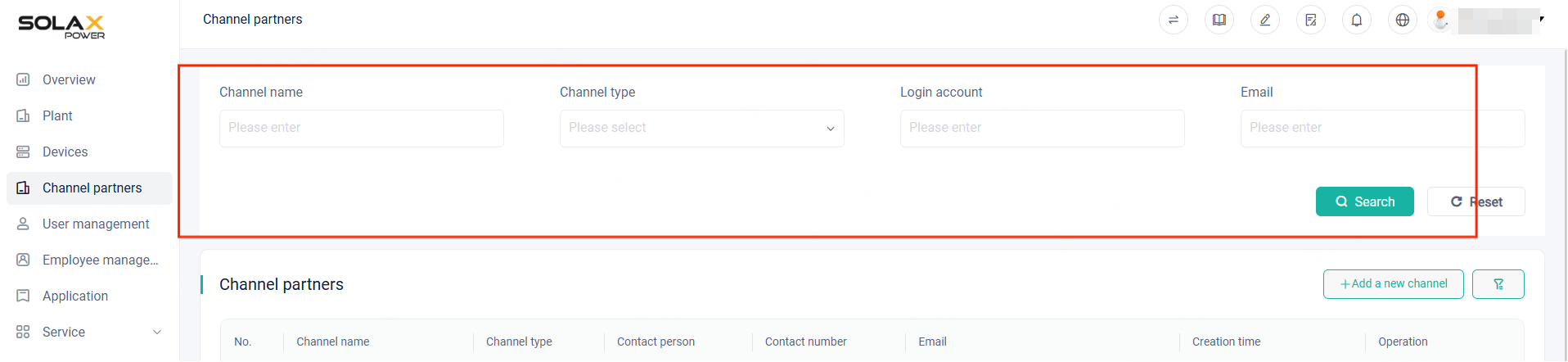
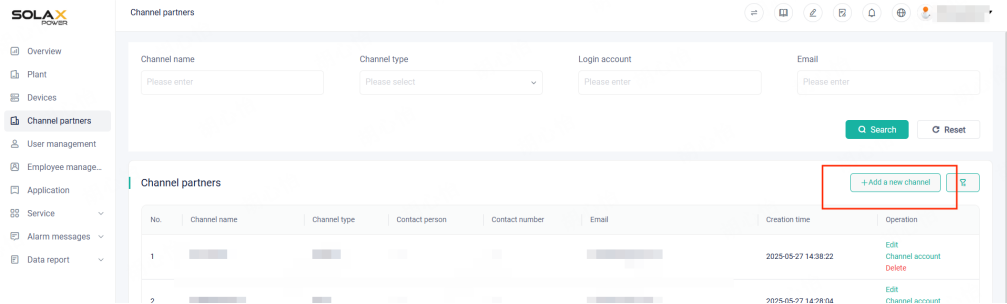
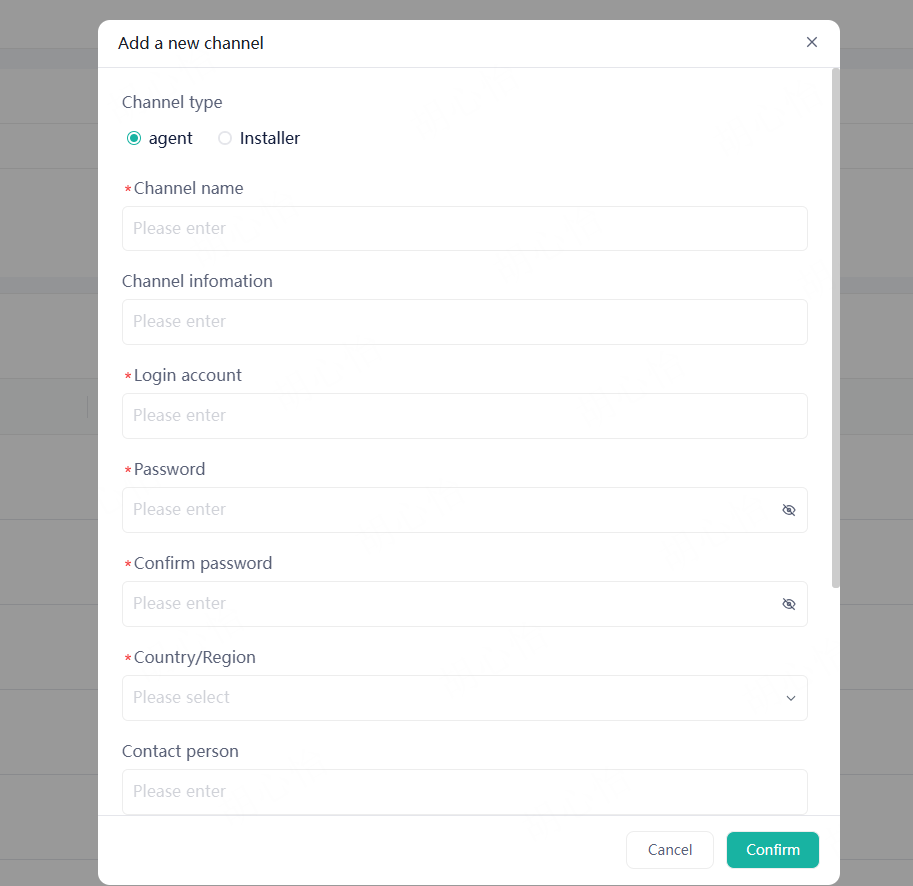
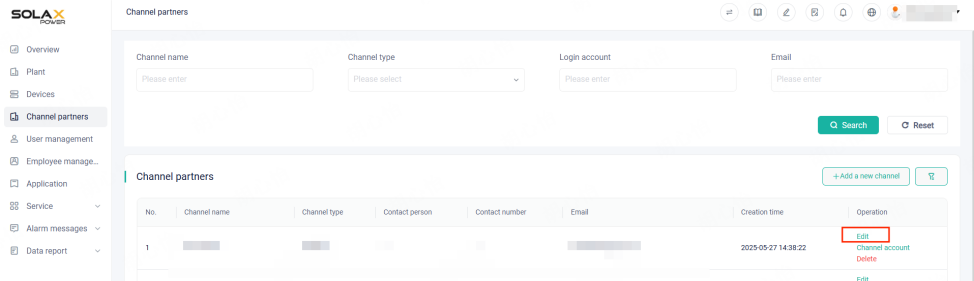
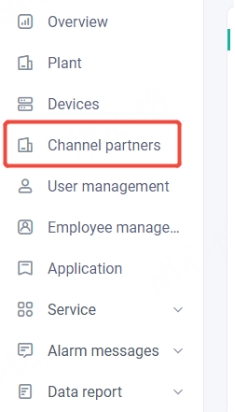
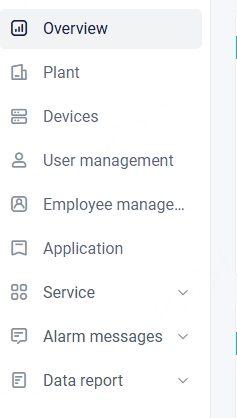
Distributors can create and manage sub-Installer/ Distributor in the channel partners section, while installers cannot.
|
Distributor Accounts
|
Installer Account
|
|
|
|
2. How to Register Distributor and Installer accounts:
(1) Self-register via the Web or App
|
Step 1: Go to the SolaX Cloud official website: https://global.SolaXcloud.com/ or use the SolaX Cloud App.
|
|
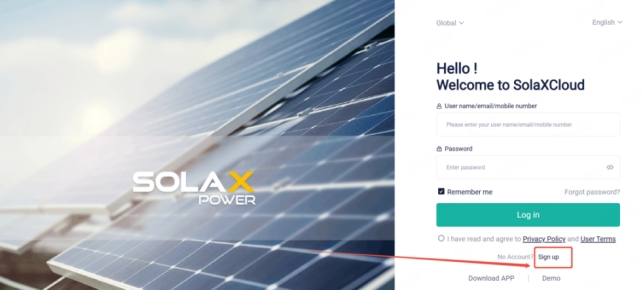
Step 2: Click on Sign Up.
|
|
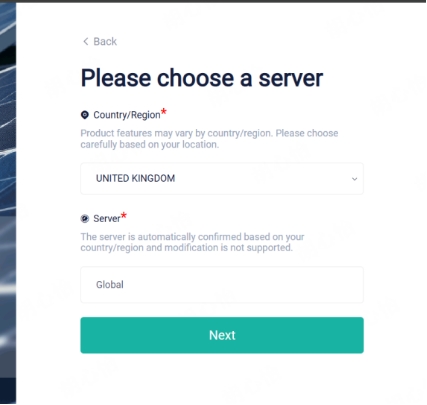
Step 3: Select your Country/Region. The system will automatically match the server. Then click Next.
|
|
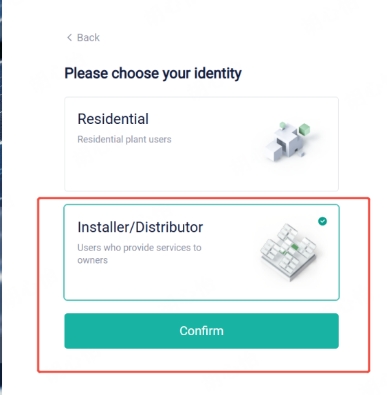
Step 4: Choose Installer/Distributor, then click Confirm.
|
|
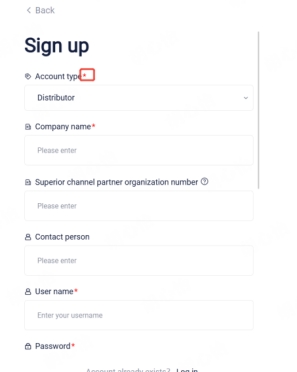
Step 5: Follow the prompts to enter the sign-up page. Fill in the required information (fields marked with * are mandatory) to complete the registration.
|
|
Step 6: Enter a Dongle serial number that has not been added to any plant, or was added to a plant less than one month ago to activate the account.
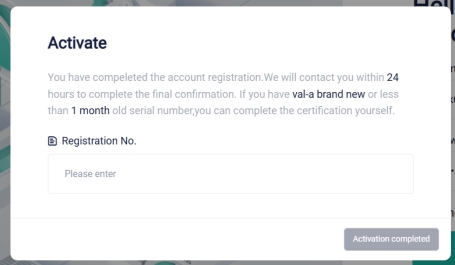
Note: Currently, activation requires a Dongle serial number that has not been added to any plant or was added to a plant less than one month ago. If such a serial number is not available, distributors or installers may first complete the registration and then provide the registration email to the SolaX technical support team, who will assist in activating the account.
New distributors/installers may visit the SolaX Power official website to locate the contact information of the SolaX Support Team in their respective region.
|
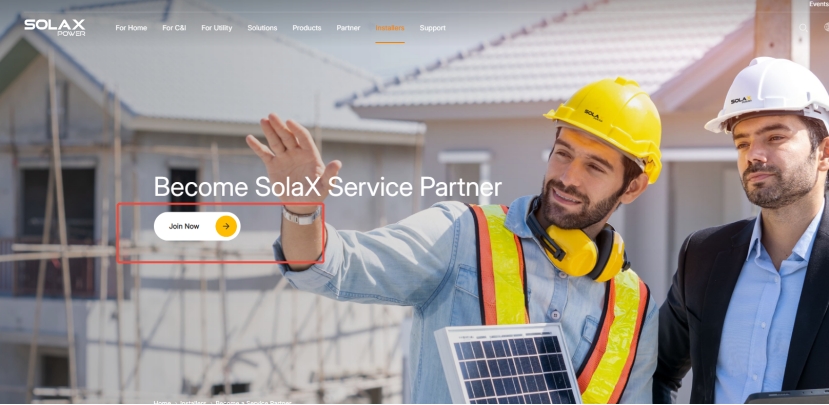
(2) SolaX Official Website Registration
(3) Submit information to SolaX technical support or your superior organization
Please contact the appropriate SolaX Support Team in your region for assistance. If you have a superior organization, you can also provide your information to them so they can help create the account.
New distributors/installers may visit the SolaX Power official website to locate the contact information of the SolaX Support Team in their respective region.
|
Required Information
|
Country:
Company Type: Distributor or Installer
Company Name:
Email:
Account Username:
|
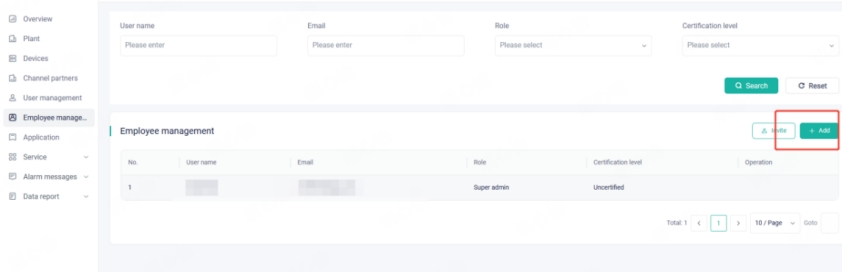
(4) If your company already has a super admin account, that account can create employee accounts within the company.
3. Explanation of the Channel Management Features Available Exclusively to Distributor Accounts
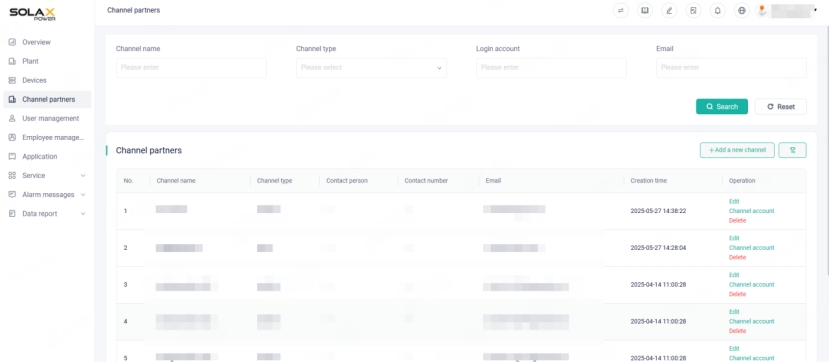
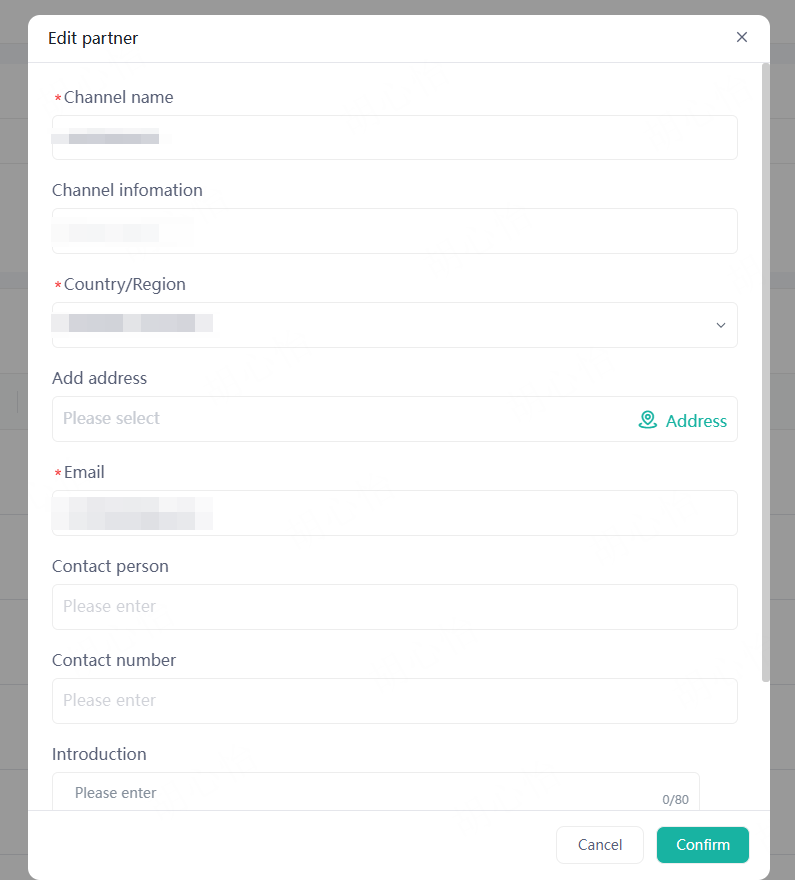
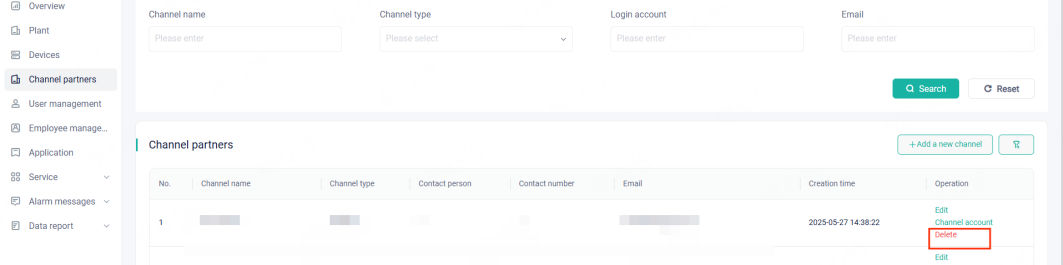
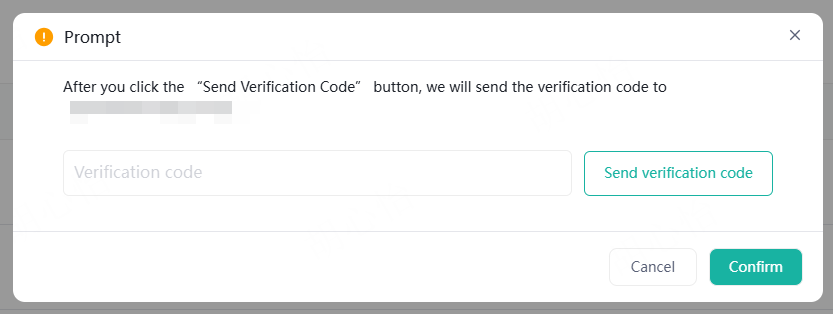
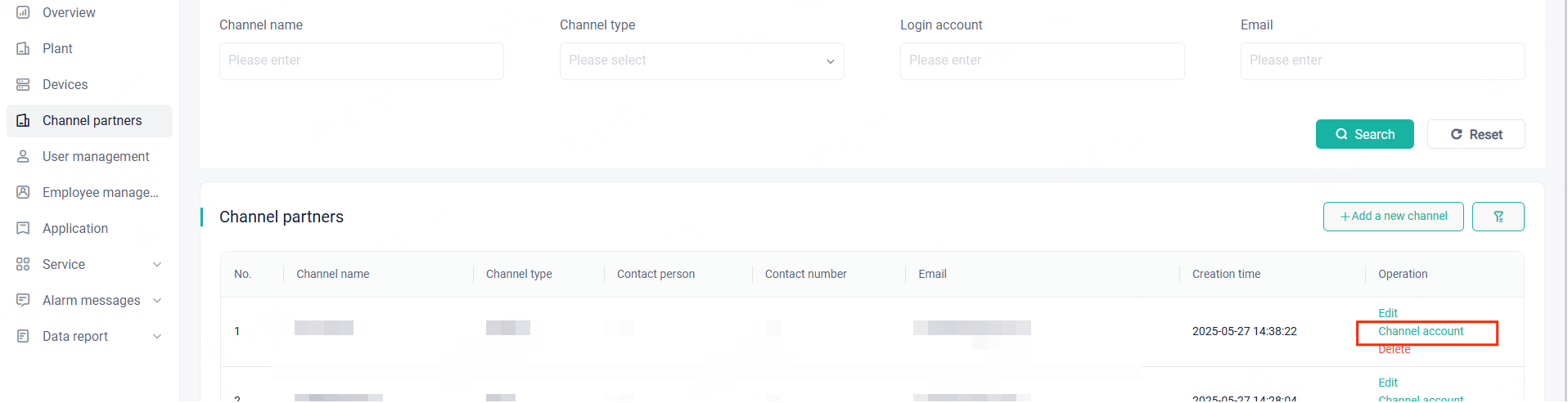
Distributors can manage channels by means of the following operations:


 Chuck Lee