

 Chuck Lee

FAQ\Cloud
Issue introduction
After the user logs into the Solaxcloud app, the interface's power flow diagram does not display power flow. 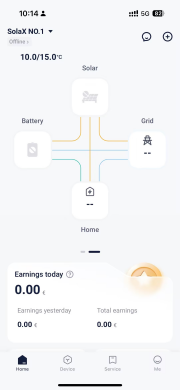
Confirmation of basic information
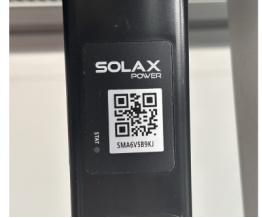
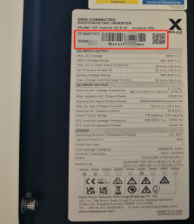
[Photo]SN number of the inverter and WiFi module.
Confirm the distance between the pocket and the router, as well as the number of walls in between.
Guidance for installer
Step1: Make sure your phone can be connected to the internet properly, then log out of your account and log back in to refresh the interface.
Step2:Refer to pocket's troubleshooting manual to check for problems with inverter networking,Here is an example of WiFi pocket.
Open the computer and locate the WLAN list. Look for the WiFi named ‘wifi_**** (module SN) ***’ in the list.
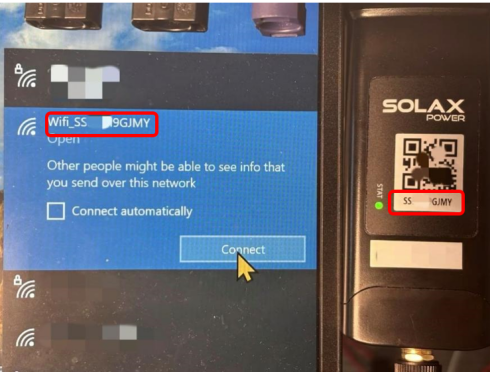
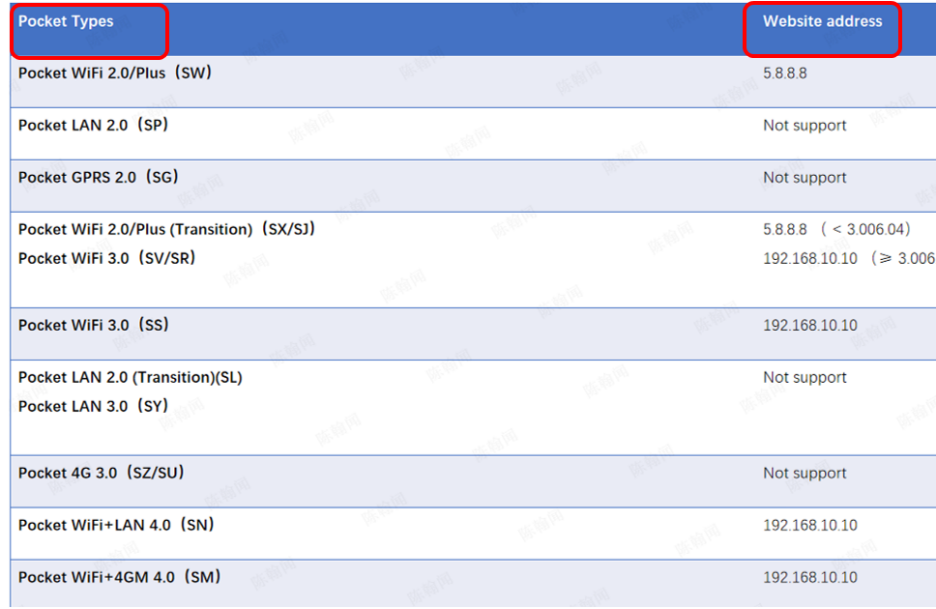
Step3: Click the ‘Connection’ and wait for the connection to succeed. Then open the computer’s browser and enter the following address: 5.8.8.8/192.168.10.10. The Website address will be chosen corresponding to the Pocket Types in the following chart.
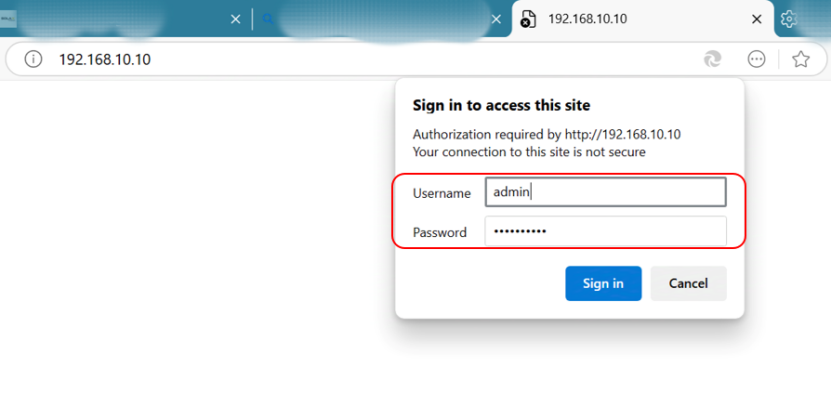
Step4: Press the Enter key ‘¿’ , and interface shown below will pop up. The account is ‘admin’, password is the SN number of the dongle.
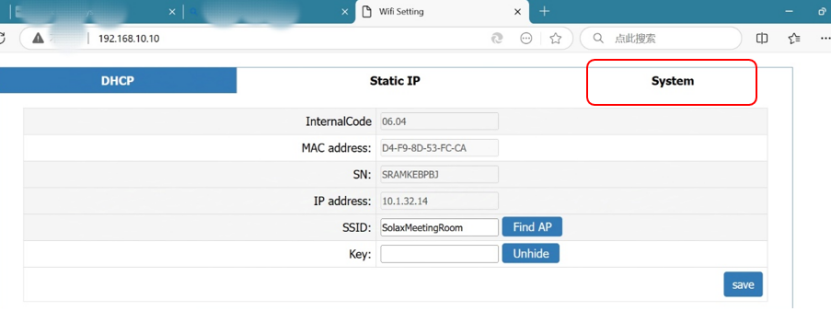
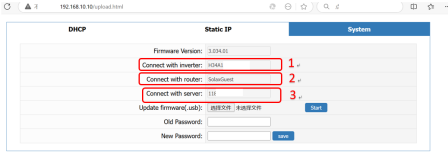
Step5: Click ‘Sign in’ and you will see the following interface. Click ‘System’ above(in the red circle) and check the three indicators identified below.
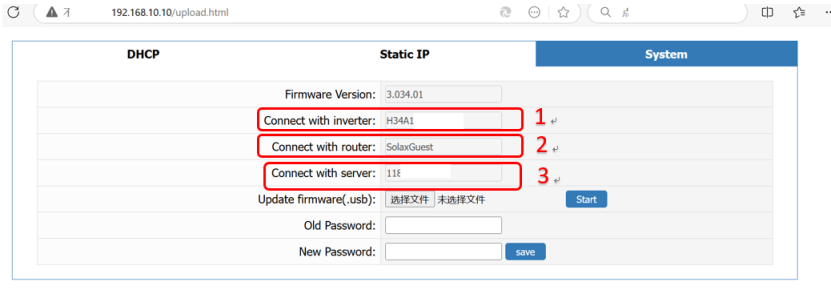
Step6: The area labeled 1 shows whether dongle is connected successfully. The connection between inverter and dongle can be checked here. If the information cannot be showed, re-plug the dongle to confirm the connection between dongle and inverter is successful.
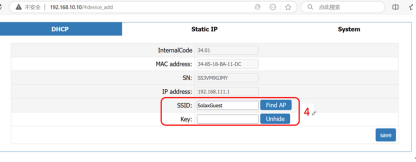
Step7: The area labeled 2 shows the router which the dongle needs to be connected. If the information cannot be displayed, click the DHCP button above the page to reconfigure the network. Input the desired SSID and key at the area labeled 4, and then click the save button in the bottom.
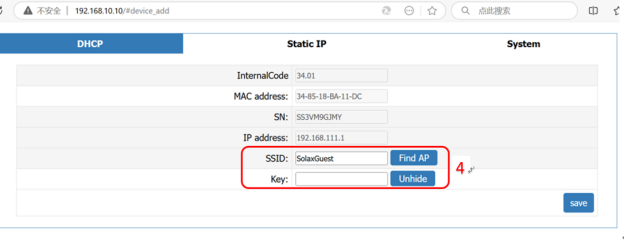 If it fails, check router Settings to see the router black-list and white-list and router frequency, and confirm the router frequency be 2.4Ghz. Note that the WiFi name(SSID) and password should not contain any special characters.
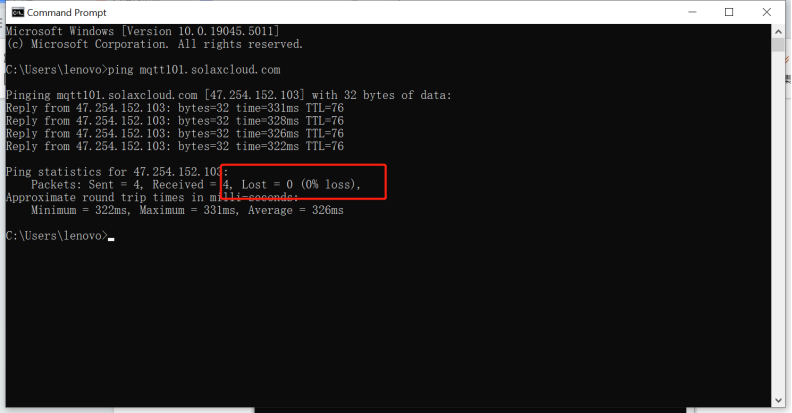
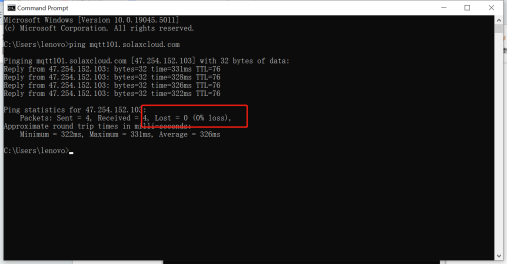
Step8: The area labeled 3 shows the link status of the server,If the information cannot be displayed, first connect the computer to the same router as the pocket. Then, in the search bar at the bottom right of the computer, type 'cmd' to open the Command Prompt window.
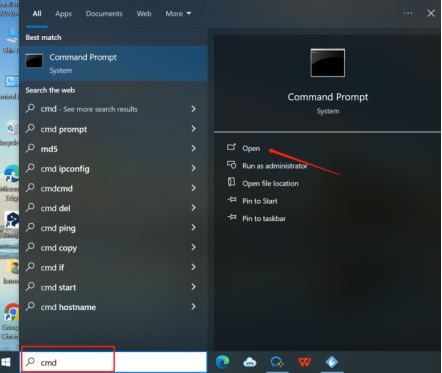
In the window, type `ping mqtt101.solaxcloud.com` and press Enter to view the results.Normally the circled area should be ‘Lost=0’ indicating normal.Screenshot to save this image.
Step9: If the issue is still not resolved, turn on your mobile hotspot to reconfigure the Wi-Fi module. If the Wi-Fi module can connect to the internet normally through the mobile hotspot, it indicates that the problem is due to the router's settings.
Information check list:
If you have completed the above <Guidance for installer>, and the problem is still not solved, please collect the following troubleshooting information and send them to the Solax technical support team.
1.[Photo]SN number of the inverter and WiFi module., which needs to clearly show the registration number.
 |
 |
2.[Photo]Screen shot of the web
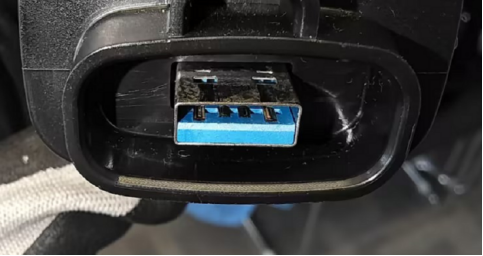
3.[Photo]The USB port of the dongle.
 4.[Video]WiFi module status light operation(10s-15s).
5.SSID and password of the router.
6.Distance between router and pocket and number of partitions.